We use cookies and similar technologies to keep this website working and remember your preferences. With your permission, we also measure site usage and record page interactions to help improve your experience.
Optional features stay off unless you accept them. You can change your choices at any time.
Find fresh leads at named companies, ask your assistant for companies that match your ideal customer and organise contacts, segments and deals in the CRM.
Find fresh leads at named companies, ask your assistant for companies that match your ideal customer and organise contacts, segments and deals in the CRM.
Find fresh leads
Company search
CRM records
One record, linked work
See a company's details, insight summary, people, deals, tasks and notes on one record.
What you can work on
Prospecting & customer records
Find fresh leads
From the CRM, name 1 to 10 target companies with at least one role and one location, and add seniority, industry, company size, HQ location, keyword or exclude keyword filters. A run finds up to 100 leads, using 1 lead from your wallet for each lead found, and fills a segment.
Describe your ideal customer
In chat, the Marketing or Strategy assistant can search LinkedIn for matching companies by keyword, HQ country or region, industry and headcount. A search returns 25 companies by default and up to 50, using AI credits according to the size of the task.
Keep records in one place
The CRM, in Beta, has record pages with details, activity and linked records, plus tasks, notes and ideal customer profiles. Track deals and tasks on boards, save views and filters, and import contacts from Google, Microsoft or a spreadsheet. Admins add custom fields, records show a score badge, and duplicates can be merged and deleted records restored from the Bin.
Current product view
Keep the pipeline visible
Follow each deal by stage, keep the team's tasks in view and see a company's people, deals and notes on one record.
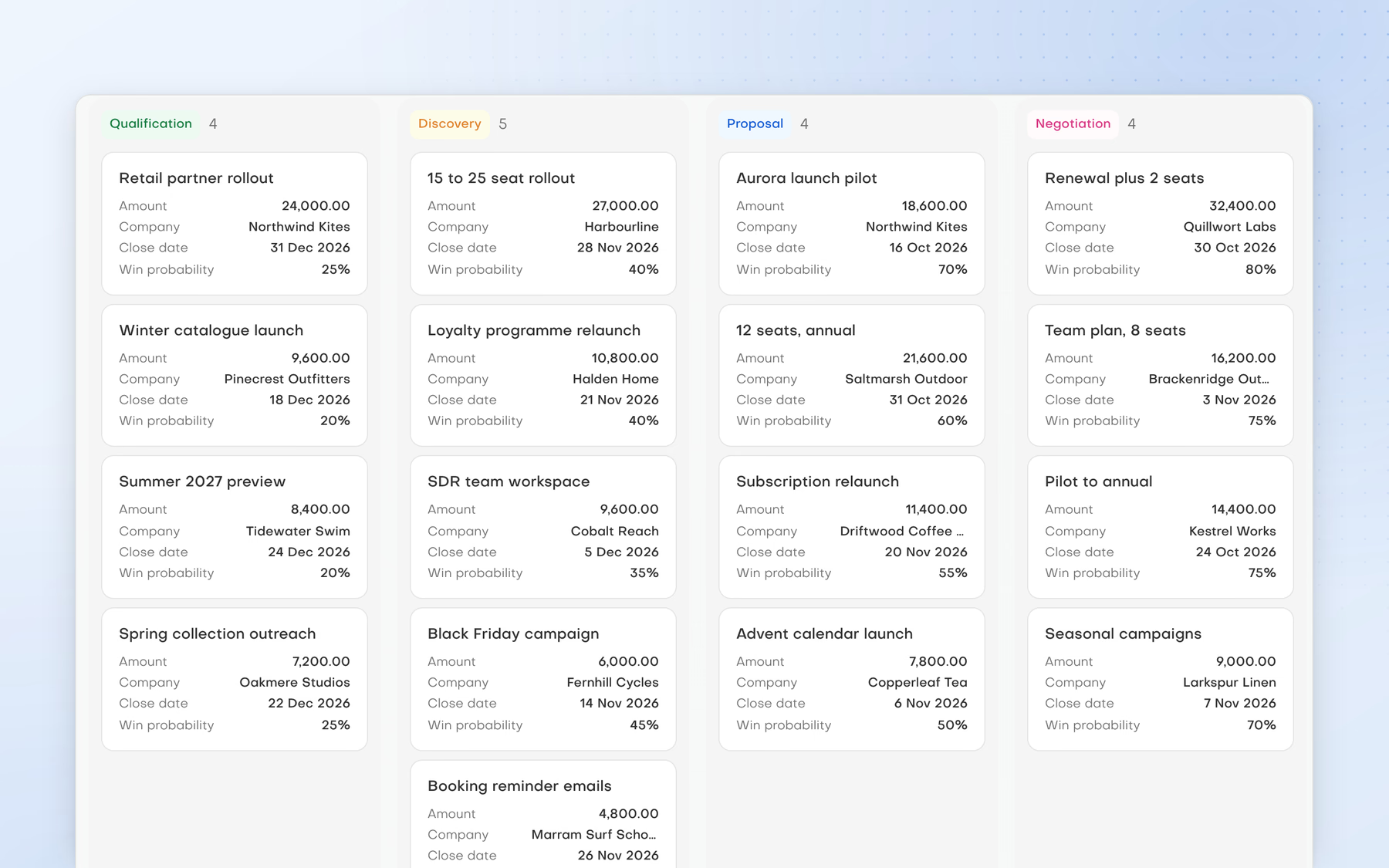
Deals by stage
Follow every open deal across Qualification, Discovery, Proposal and Negotiation, with value, close date and win probability on each card.
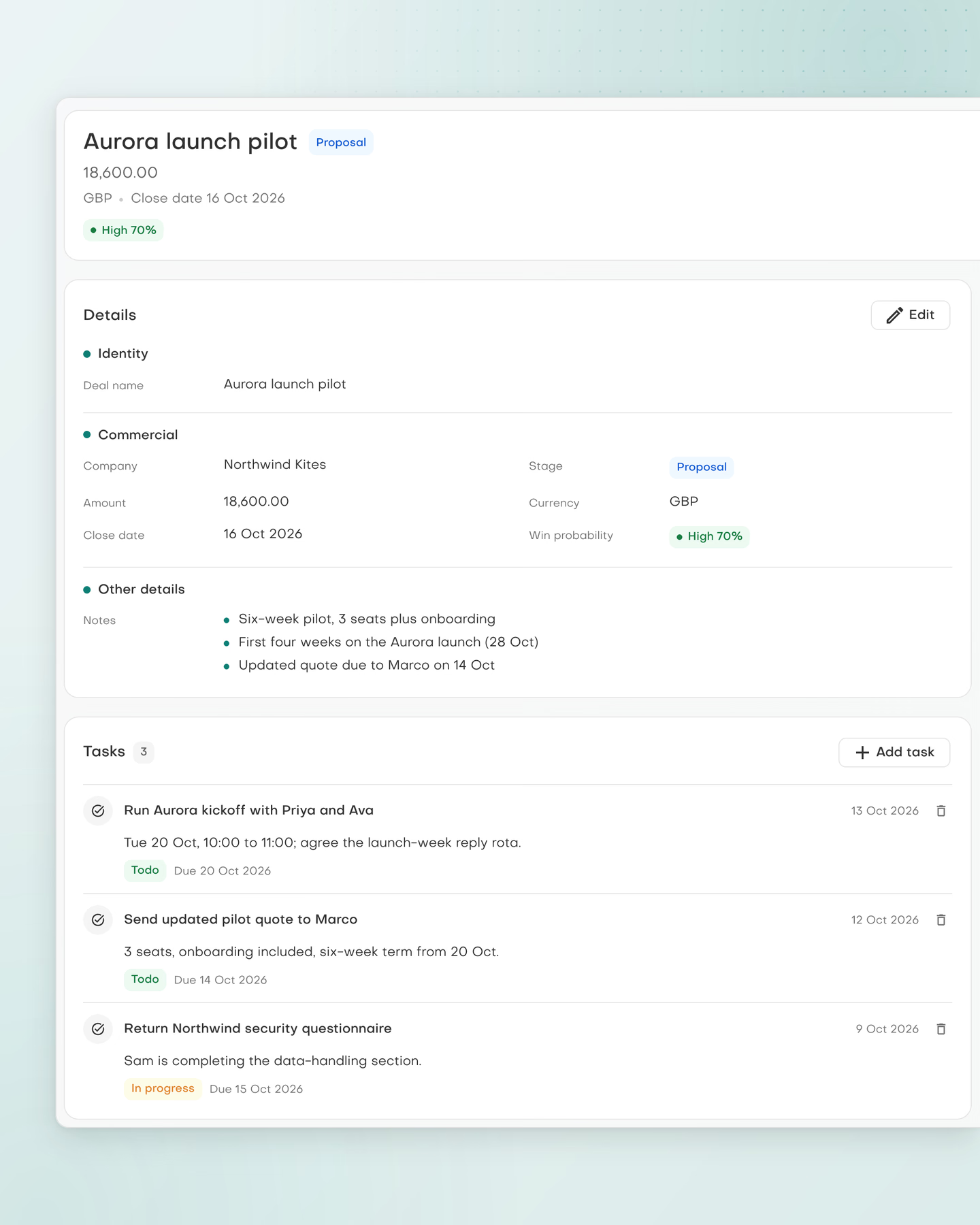
The deal in detail
Open a deal to see its stage, value, close date, notes, tasks and the contacts involved.
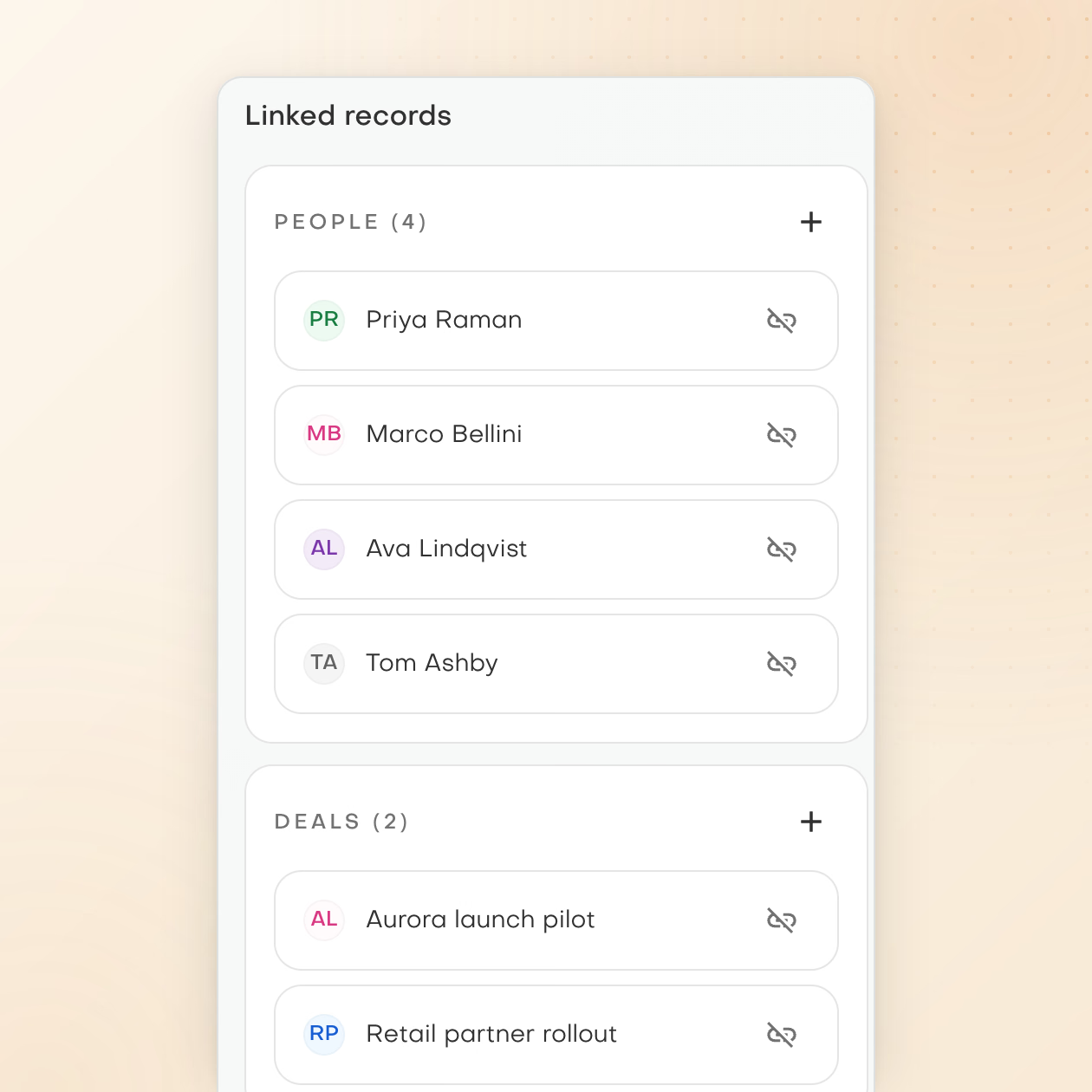
One record, linked work
See a company's details, insight summary, people, deals, tasks and notes on one record.
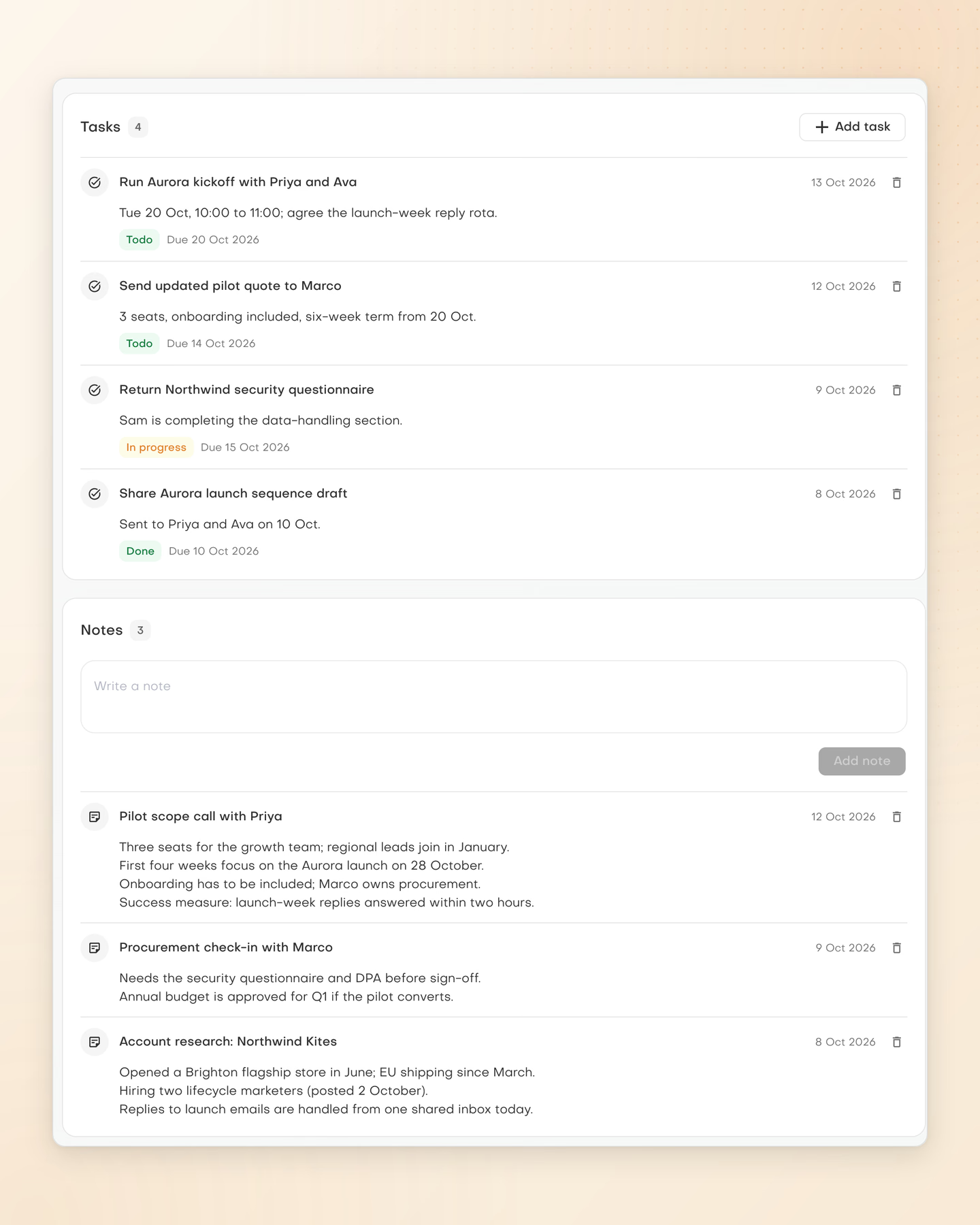
Team tasks in view
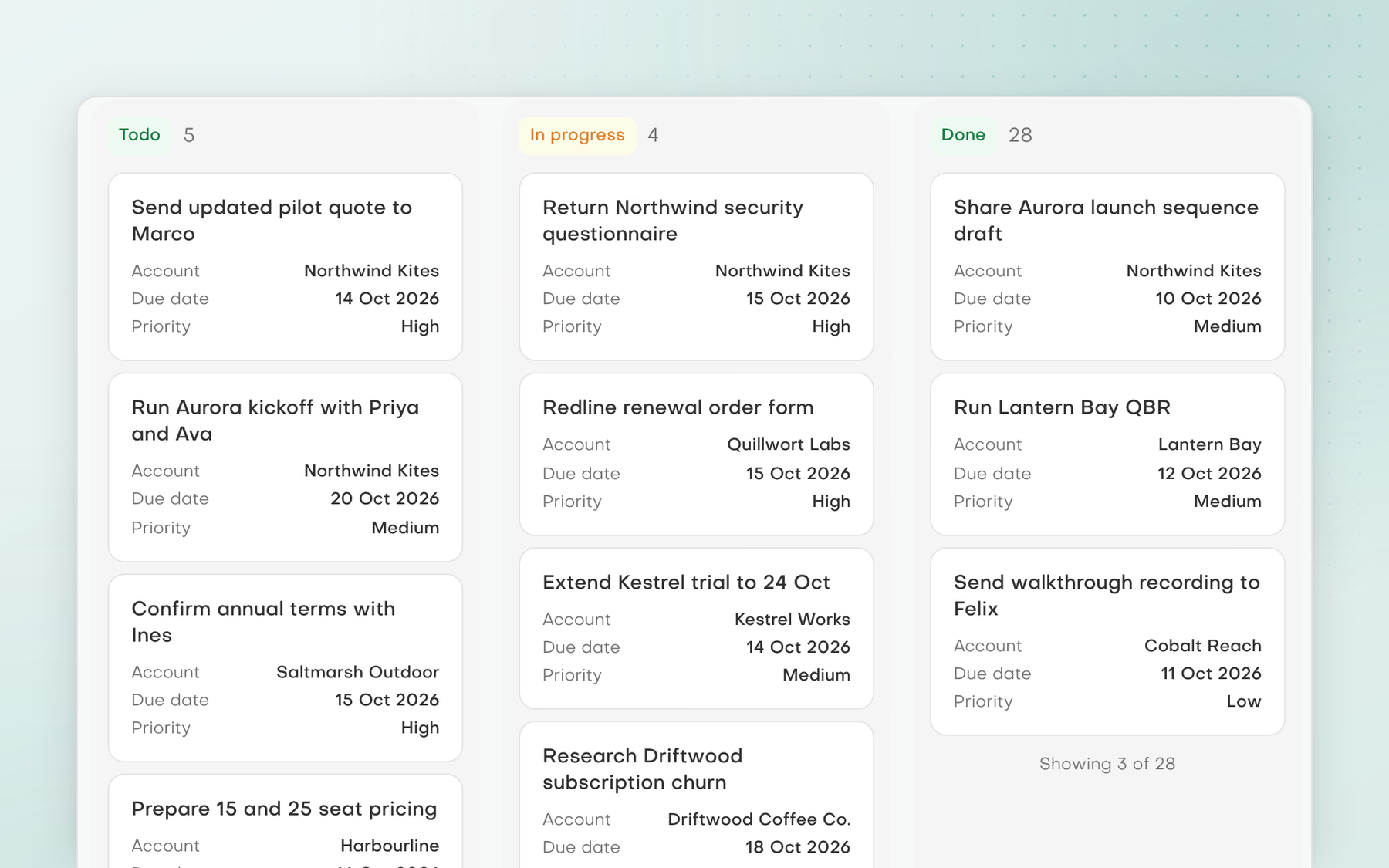
Keep the team's tasks on one board, from Todo through In progress to Done.
A practical starting point
How to approach the work
Describe your ideal customer or name the companies to target.
Review the run settings and start the lead search, approving it if you work in Manual mode.
Work through the new segment, using each lead's personalisation angles, drawn from their public LinkedIn posts or their role and company.
Pebbles Ai takes care of the busywork, delivers smart tactics in minutes, and handles the sales outreach. I now spend my time actually selling, hitting quota early most months, with bonuses naturally following. Our SDRs move prospects through the funnel nearly twice as fast. We’ve doubled our speed without sacrificing quality.
Ian MousleySenior Sales Leader, Apple
Clear answers
Common questions
How does AI find companies that match my ideal customer?
Describe your ideal customer in chat. The Marketing or Strategy assistant searches LinkedIn for matching companies by keyword, head office country or region, industry and number of employees. A search returns 25 companies by default and up to 50. Then find the right people at up to 10 of them.
What do I need to start a lead search?
Between 1 and 10 target companies, at least one role and at least one location. You can also filter by seniority, industry, company size, head office location and keywords, or exclude keywords. A Find fresh leads run starts from the CRM contacts toolbar and finds up to 100 leads.
Can I check a lead search before it runs?
Yes. Review the companies, roles, locations and filters before you start. Use exclude keywords to leave out roles you do not want, such as interns. In Manual mode, the run waits for your approval, so you get one last check.
Are lead results guaranteed?
No. A run can finish with no leads, and contact details depend on what is public. Results land as CRM contacts in a segment. Work emails are found where possible, each with a confidence score and a catch-all flag, which warns that the company accepts mail to any address.
What does a lead search use from my wallet?
Leads. Each lead found uses 1 lead from your Pebbles wallet, and a run cannot find more leads than you have left. Searching for companies in chat is different: it is not charged per company and uses AI credits based on the size of the task.
How do leads help me personalise outreach?
Each lead comes with personalisation angles. They come from the person's public LinkedIn posts, or from their role and company when there are no posts. Use them to open your message with something that matters to that person.
What can I do in the Pebbles Ai CRM?
Keep contacts, deals, tasks and notes in one place. Record pages show details, activity and linked records. Track deals and tasks on boards, save views and filters, and keep ideal customer profiles. Import contacts from Google, Microsoft or a spreadsheet. The CRM is in Beta.
Can the Pebbles Ai CRM replace my current CRM?
Not fully. The CRM is in Beta. It has record pages, custom fields, segments, deals, boards and saved views. It does not include forecasting or attribution, and there is no two-way sync with another CRM. Check the features your team relies on before you switch.