We use cookies and similar technologies to keep this website working and remember your preferences. With your permission, we also measure site usage and record page interactions to help improve your experience.
Optional features stay off unless you accept them. You can change your choices at any time.
Connect Gmail and Outlook inboxes, Google Calendar, Notion, Slack, a social publishing account and MCP servers from the Pebbles Ai catalogue, so the assistants can work with them from Assistant chat. Every connection is available on every plan.
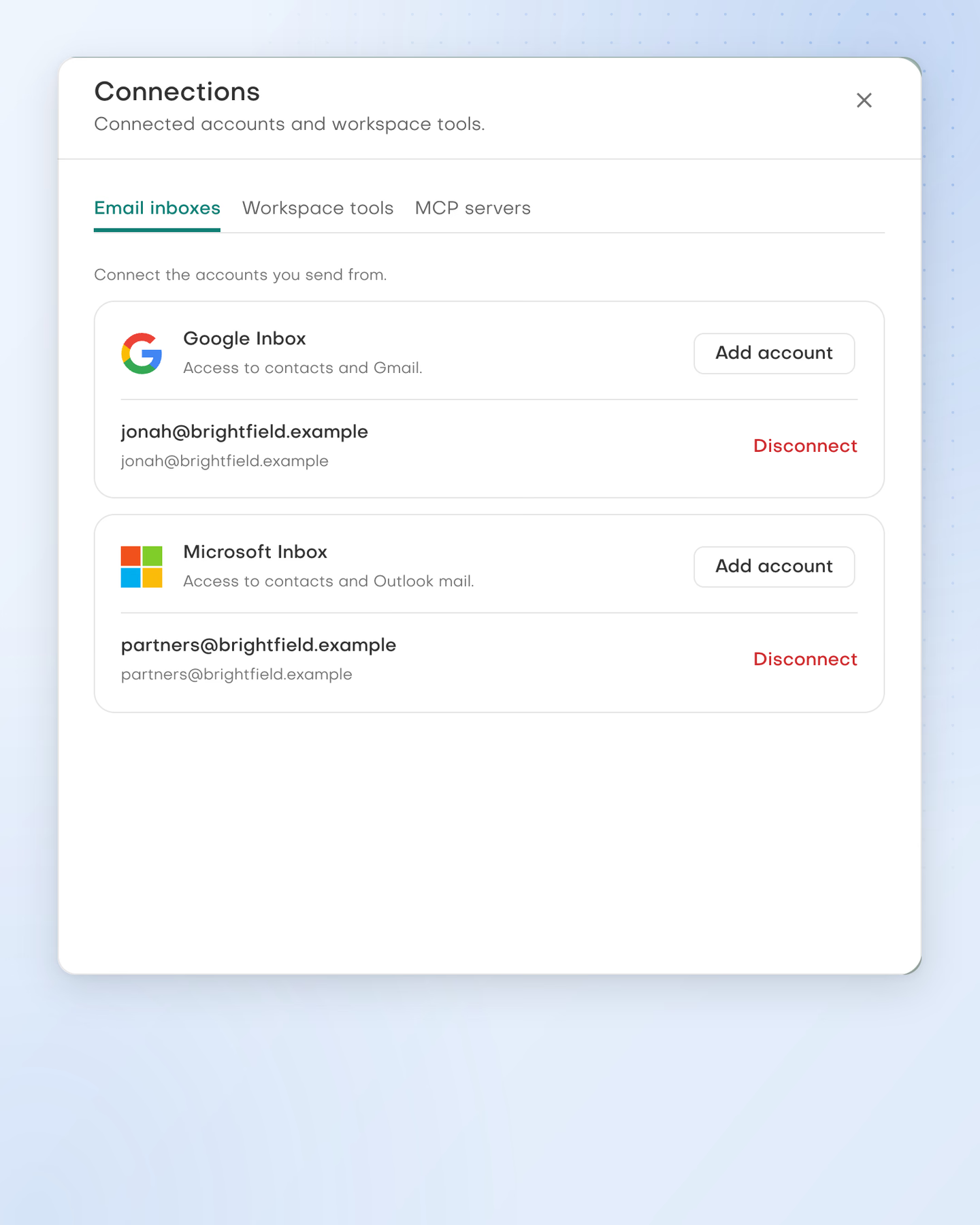
Connect the Gmail and Outlook accounts you send from. Each account can be disconnected on its own.
Workspace tools
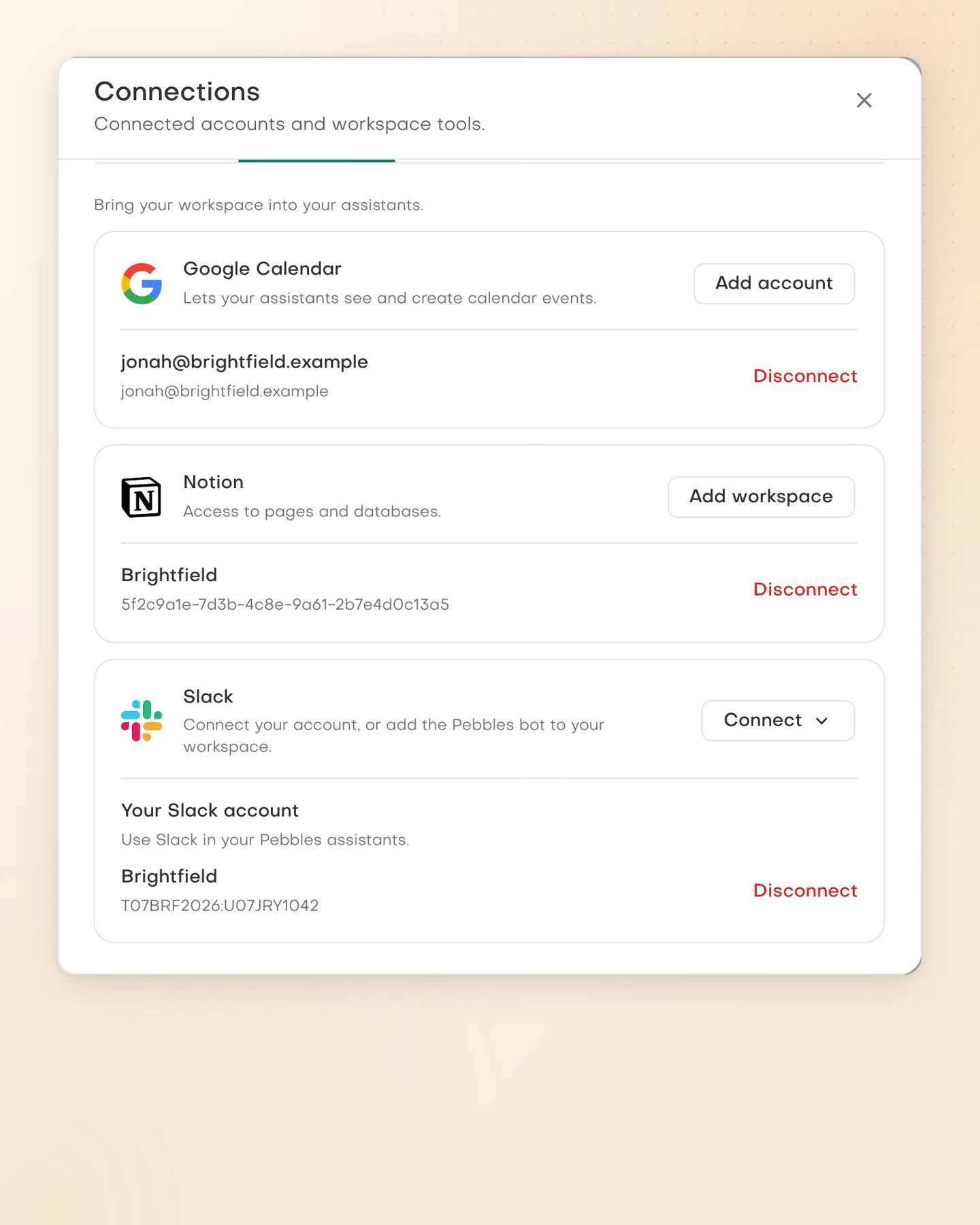
Bring a calendar, Notion pages and your own Slack account into your assistants.
MCP servers
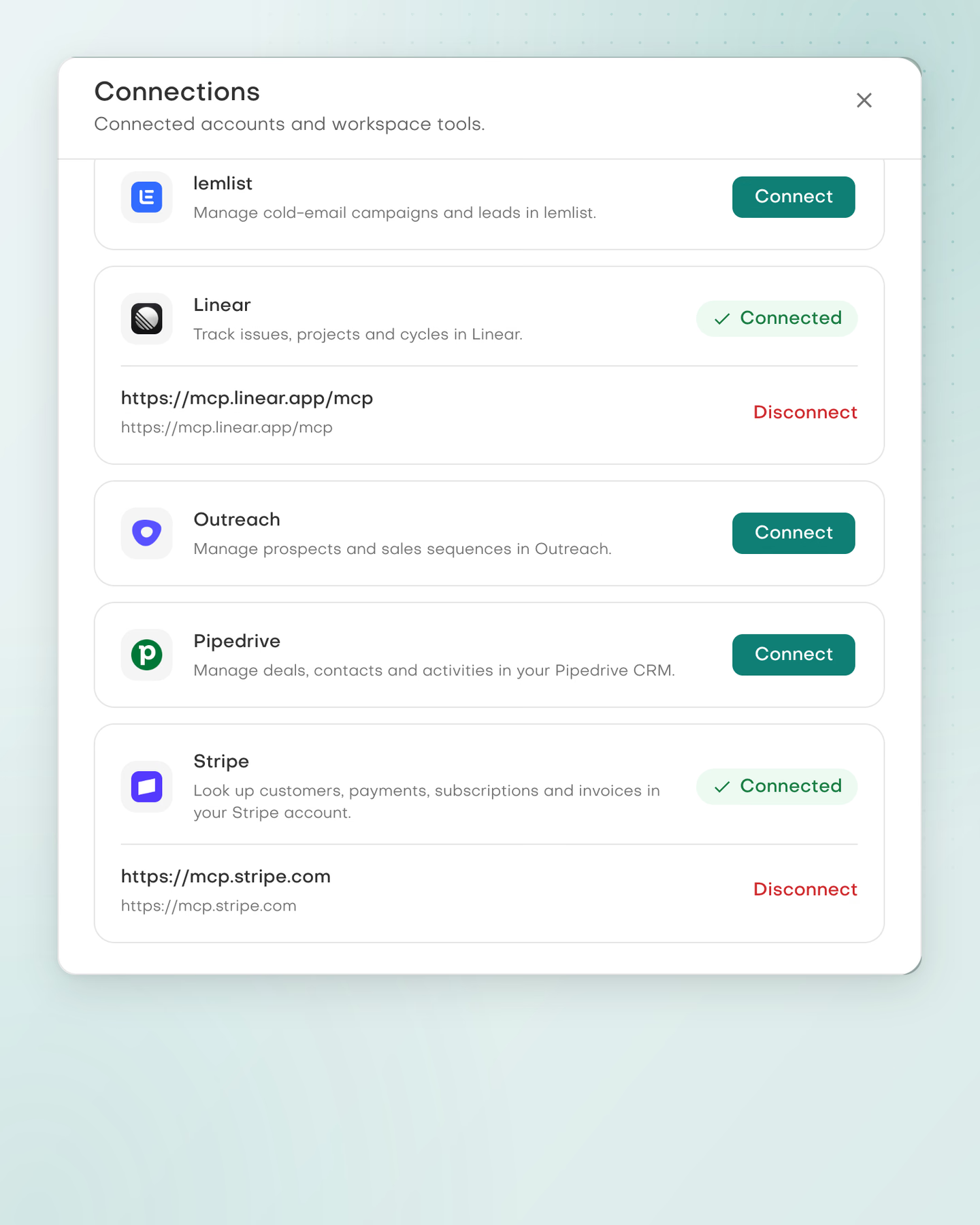
Connect servers from the catalogue in Settings. Linear and Stripe are connected here; the catalogue may change.
GmailEmail inbox
OutlookEmail inbox
Google CalendarWorkspace tool
SlackWorkspace tool
NotionWorkspace tool
AtlassianMCP server
StripeMCP server
CalendlyMCP server
See all 19 connectionsShow fewer connections
Email inboxes
Connect the accounts you send from.
Gmail
Assistants search and read mail, write drafts and manage labels and filters. Connect more than one inbox.
Who connects: Each person
Outlook
Assistants search and read mail, write drafts and manage categories and rules. Connect more than one inbox.
Who connects: Each person
Workspace tools
Bring your workspace into your assistants.
Google Calendar
Assistants read calendars and free or busy times, and create, update and respond to events, with an optional Google Meet link.
Who connects: Each person
Slack
With your own Slack account, assistants read and search channels, threads and files, and post, edit and react as you.
Who connects: Each person
Slack, Pebbles bot
The Pebbles bot gives assistants access to the channels it is added to, where they read, search and post as the bot.
Who connects: An admin, for the workspace
Notion
Assistants search, read and query the pages and databases shared with Pebbles Ai, and create, edit, comment on and archive them.
Who connects: An admin, for the workspace
Social publishing
Through a connected social publishing account, assistants publish, schedule, update and cancel posts, review analytics and re-send failed posts.
Who connects: An admin, for the workspace
MCP servers
Connect remote tools your assistants can use.
Atlassian
Use your Jira and Confluence data and actions through MCP.
Who connects: Each person
Stripe
Use your Stripe data and actions through MCP.
Who connects: Each person
Pipedrive
Use your Pipedrive data and actions through MCP.
Who connects: Each person
Attio
Use your Attio data and actions through MCP.
Who connects: Each person
Apollo.io
Use your Apollo.io data and actions through MCP.
Who connects: Each person
Outreach
Use your Outreach data and actions through MCP.
Who connects: Each person
Amplemarket
Use your Amplemarket data and actions through MCP.
Who connects: Each person
lemlist
Use your lemlist data and actions through MCP.
Who connects: Each person
Customer.io
Use your Customer.io data and actions through MCP.
Who connects: Each person
Klaviyo
Use your Klaviyo data and actions through MCP.
Who connects: Each person
Calendly
Use your Calendly data and actions through MCP.
Who connects: Each person
Linear
Use your Linear data and actions through MCP.
Who connects: Each person
The MCP catalogue is curated by Pebbles Ai and may change. MCP is on every plan, and each person connects their own servers with that service's own sign-in.
What you can work on
Integrations
Email inboxes
Each person connects their own Gmail and Outlook mailboxes, several if they need them. Assistants search and read mail, write drafts and organise your inbox with labels, categories, filters and rules. Sending follows your mode: Manual holds it for your approval, Plan queues it and Auto runs it.
Workspace tools
With Google Calendar connected, assistants read your free/busy time and create events with a Google Meet link; deleting an event always asks, in every mode. An admin connects Notion and the Slack bot for the workspace, and each person can connect their own Slack account. The bot gives the assistants access to the channels it is added to. An admin can also connect a social publishing account of your own to publish and schedule posts through it.
MCP servers
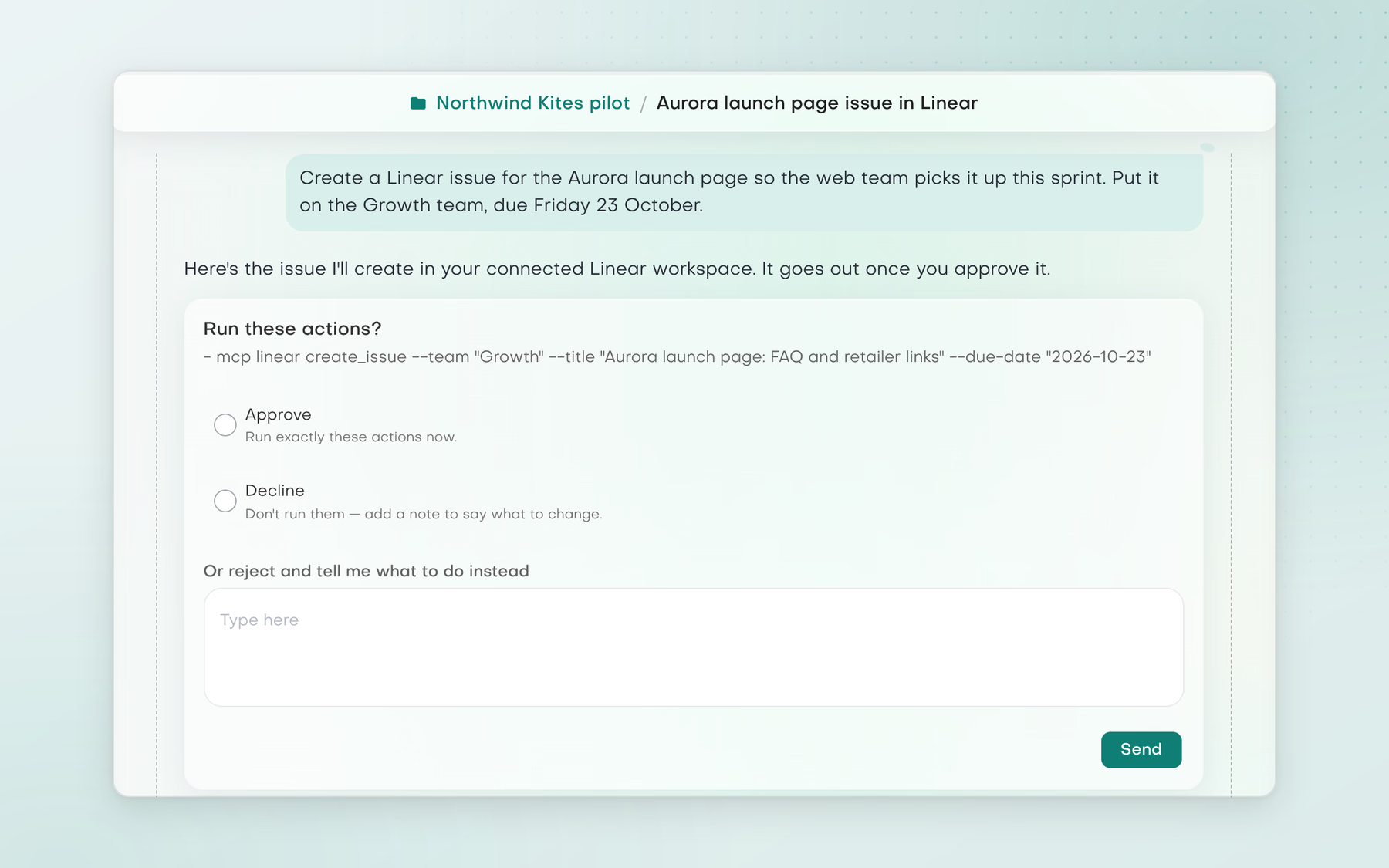
Each person picks servers from the Pebbles Ai catalogue in Settings, Connections, and connects their own account with that service's sign-in. The Marketing and Strategy assistants use them. MCP actions follow your mode: Manual shows a “Run these actions?” card, Plan queues them and Auto runs them.
Your mode decides
Your execution mode decides
Reading, searching and drafting help you prepare. Actions that reach other people or change your tools follow the mode you choose for the chat.
Approve before it runs
When the assistant asks before acting, it shows exactly what it will run and waits for your answer.
Manual
Sending mail, MCP actions and changes in Slack, Notion and your calendar wait for an approval card. For MCP servers it reads “Run these actions?”.
Plan
The assistant queues those actions with its plan for you to review.
Auto
The actions run without asking. Deleting a calendar event still asks, in every mode.
A practical starting point
How to approach the work
Open Settings, Connections and add an inbox, a workspace tool or an MCP server.
Ask an assistant to work with it in Assistant chat: find a free slot, draft a reply or look something up in a connected tool.
Choose Manual, Plan or Auto to decide which actions wait for you, then review what the assistant sends or changes.
Clear answers
Common questions
Which tools can I connect to Pebbles Ai?
Gmail and Outlook inboxes, Google Calendar, Notion, Slack, a social publishing account of your own and MCP servers from the Pebbles Ai catalogue. Every connection is available on every plan. Add them in Settings, Connections.
Who connects each tool?
Each person connects their own inboxes, Google Calendar, Slack account and MCP servers. An admin connects Notion, the Pebbles bot for Slack and the social publishing account once for the whole workspace. Inboxes, Calendar, Slack, Notion and MCP servers use each service's own sign-in.
Do assistants act in my tools without asking?
It depends on the execution mode. In Manual, sending mail, MCP actions and changes in Slack, Notion and your calendar wait for your approval. Plan lines them up for review without running them, and Auto runs them. Deleting a calendar event asks in every mode.
Can an assistant book meetings in Google Calendar?
Yes. With Google Calendar connected, an assistant can find a free slot and create an event with guests. In Manual mode, it asks before it creates the event. Deleting an event always asks, in every mode.
What is an MCP server?
An MCP server lets an AI assistant use another app's data and actions. MCP stands for Model Context Protocol, a shared standard for connecting tools to AI. In Pebbles Ai, you connect servers from the catalogue, and the Marketing and Strategy assistants use them in chat.
Which MCP servers can I connect?
Servers from the Pebbles Ai catalogue, which may change. It includes Atlassian for Jira and Confluence, Stripe, Pipedrive, Attio, Apollo.io, Outreach, Amplemarket, lemlist, Customer.io, Klaviyo, Calendly and Linear. You can only connect servers in the catalogue, not a server added by its URL.
Can I connect HubSpot or another CRM?
Not as a native connection. HubSpot and Salesforce are not in Connections, and there is no two-way CRM sync. The MCP catalogue does include Pipedrive and Attio. Pebbles Ai also has its own CRM, where you can import contacts from Google, Microsoft or a CSV file.
Can the assistants publish and schedule social posts?
Yes, once an admin connects a social publishing account. This needs your own account with a social publishing service. Your assistant can then publish or schedule posts, manage them afterwards and report on how your posts performed. A failed post can be re-sent to the accounts where it failed.