Skip to content
Pebbles Ai

Founder / CEO

Decide with the full picture

Decide where to take the company next, starting from what it already knows.

Start with the Strategy assistant. Then pick any of the 3 ways to work below.

Understand an opportunity

From a question to a clearer brief

Understand

For the founder deciding what to take to market next and who it should serve.

Research + AI workspace

  1. Ask the Strategy assistant your question inside a project, such as whether a new segment is worth a pilot.
  2. Research public sources and check the numbered citations and the source list behind each finding.
  3. Ask the Strategy assistant to turn the findings into a spreadsheet, a document or a slide deck, and download the file.
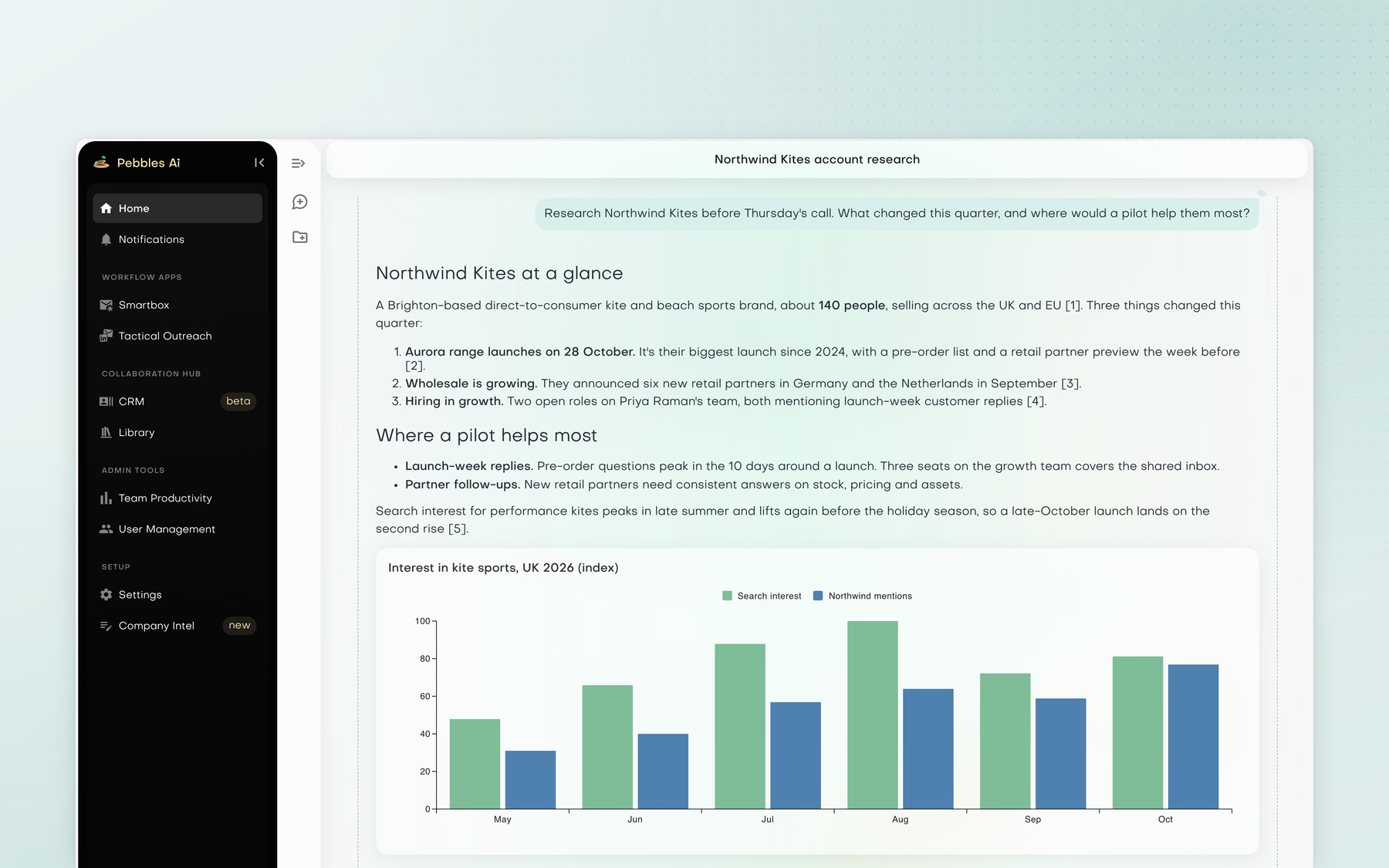
Pebbles Ai chat 'Northwind Kites account research': Jonah Reyes asks for research and the assistant answers with Northwind Kites at a glance, where a pilot helps most, and a bar chart of UK kite-sport interest from May to October.

Research with sources

Ask for account research and get findings, reasoning and a chart in the chat, with every claim linked to its source.

The researcher is instructed to back key claims with two independent sources where possible and to flag claims that rest on one.
Set up Company Intel

Teach Pebbles Ai your business once

Company Intel

For the founder or admin who wants every assistant to start from the same picture of the company. Company Intel sits in the admin area.

Company Intel

  1. Build Company Intel from your website, company information, uploaded files and pasted text.
  2. Review Business knowledge (Company, Approach and Offerings) and Brand voice (Conviction, Audience, Message and Expression), with suggested rewrites beside each answer.
  3. Edit any entry yourself. When the business changes, refresh it with Add what's missing or Start fresh.
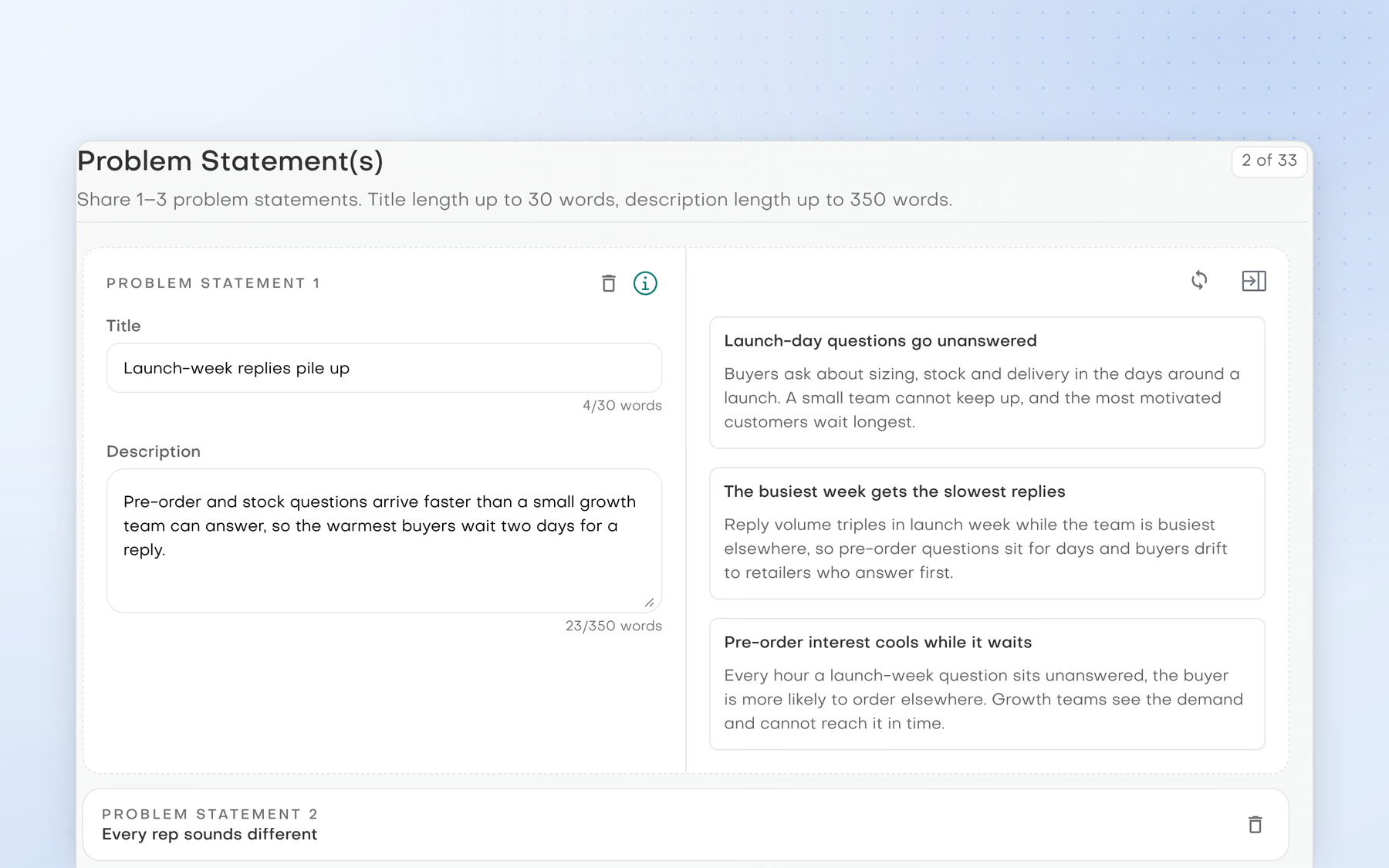
Brightfield's Problem Statement(s) step in Company Intel: the first statement, 'Launch-week replies pile up', open in the editor beside three AI-suggested rewrites, with 'Every rep sounds different' below.

Company information

Review and refine the company information that gives supported workflows their context, with suggested rewrites beside each answer.

The first company-intel extraction and the first brand-voice extraction on each account are free; later runs use AI credits.

Teach your assistant once

Say it once. Later chats start from it

Memory

For anyone tired of repeating the same context. Tell an assistant a lasting fact in plain words and it brings that fact into your later chats.

Agent memory

  1. Tell the Marketing or Strategy assistant, or the Guider, something lasting, such as “Remember that we ship only within the EU”. It says in a few words what it remembered and in which layer.
  2. Your memory stays personal to you, project memory stays with the chats in that project and company memory reaches everyone in your workspace.
  3. Correct or forget a fact by asking, in the same plain words. Ask “What do you remember?” and the assistant tells you what it has kept.
  4. Memory is on by default. You can switch it off in Settings with Remember my conversations.
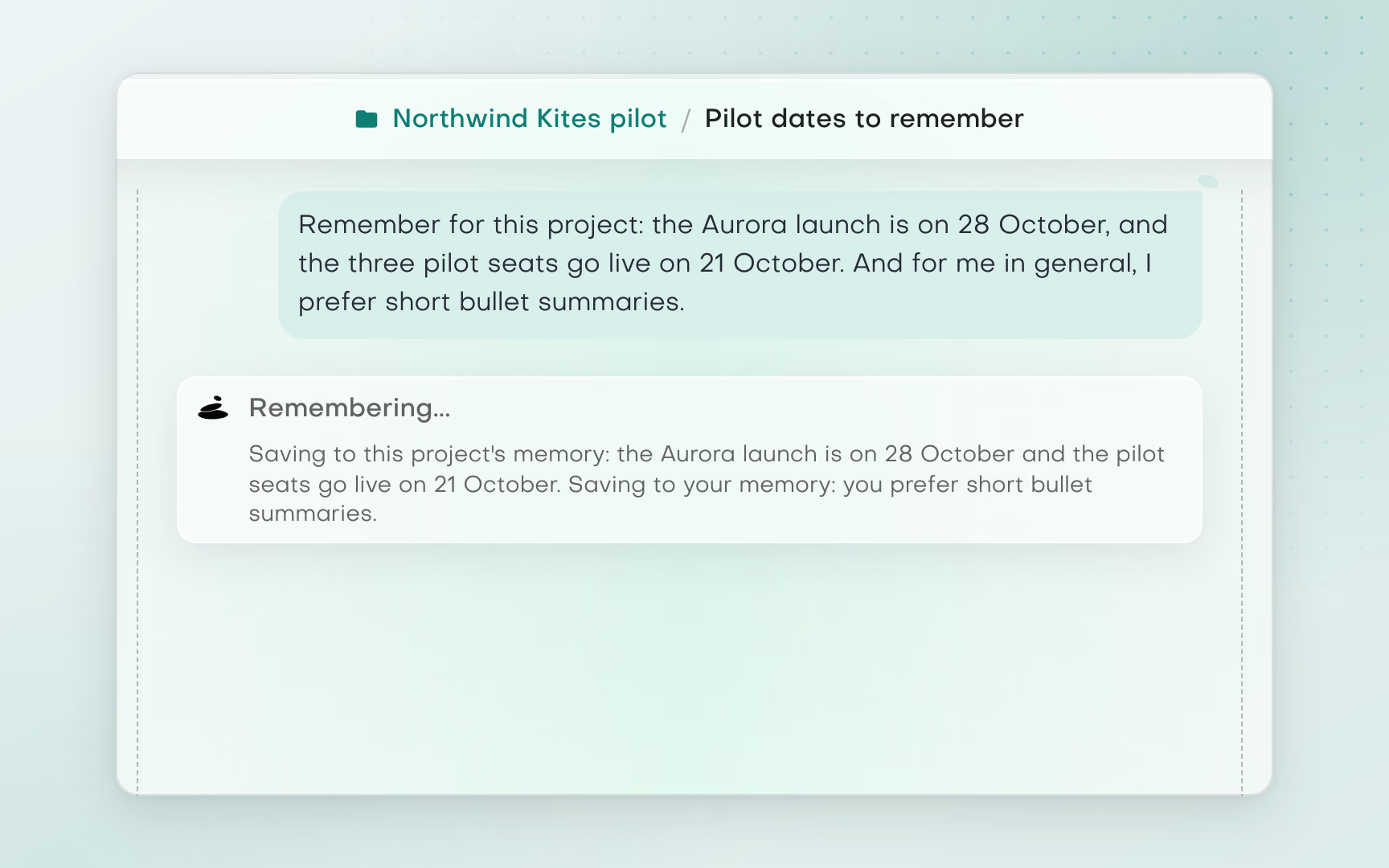
In the Northwind Kites pilot chat 'Pilot dates to remember', Jonah asks the assistant to remember the Aurora launch on 28 October and the pilot seats on 21 October, plus a personal preference for short bullet summaries. A Remembering widget saves the dates to this project's memory and the preference to his own memory.

Remember

State a lasting fact and the assistant saves it, then tells you what it kept and at which level.

Memory holds short facts you state or confirm, not copies of your documents, CRM records or drafts.

Strategy / Ops

Plans the team can follow

Turn a goal into a plan the team can follow, and keep everyone on it.

Start with the Strategy assistant. Then pick any of the 4 ways to work below.

Inspect the plan first

See every step before anything runs

Plan

For whoever turns a goal into work the team can follow. Ask for a plan, inspect it, then choose how much runs without you.

AI workspace

  1. Describe the goal to the Strategy assistant, such as running a pilot with a new customer.
  2. Inspect the steps and dependencies in the plan before deciding how to proceed.
  3. Choose the execution mode. In Plan, actions that reach the outside world are queued, not run. In Manual, each one asks for approval. In Auto, they run without asking.
  4. Template send and calendar delete always ask for approval, in every mode.
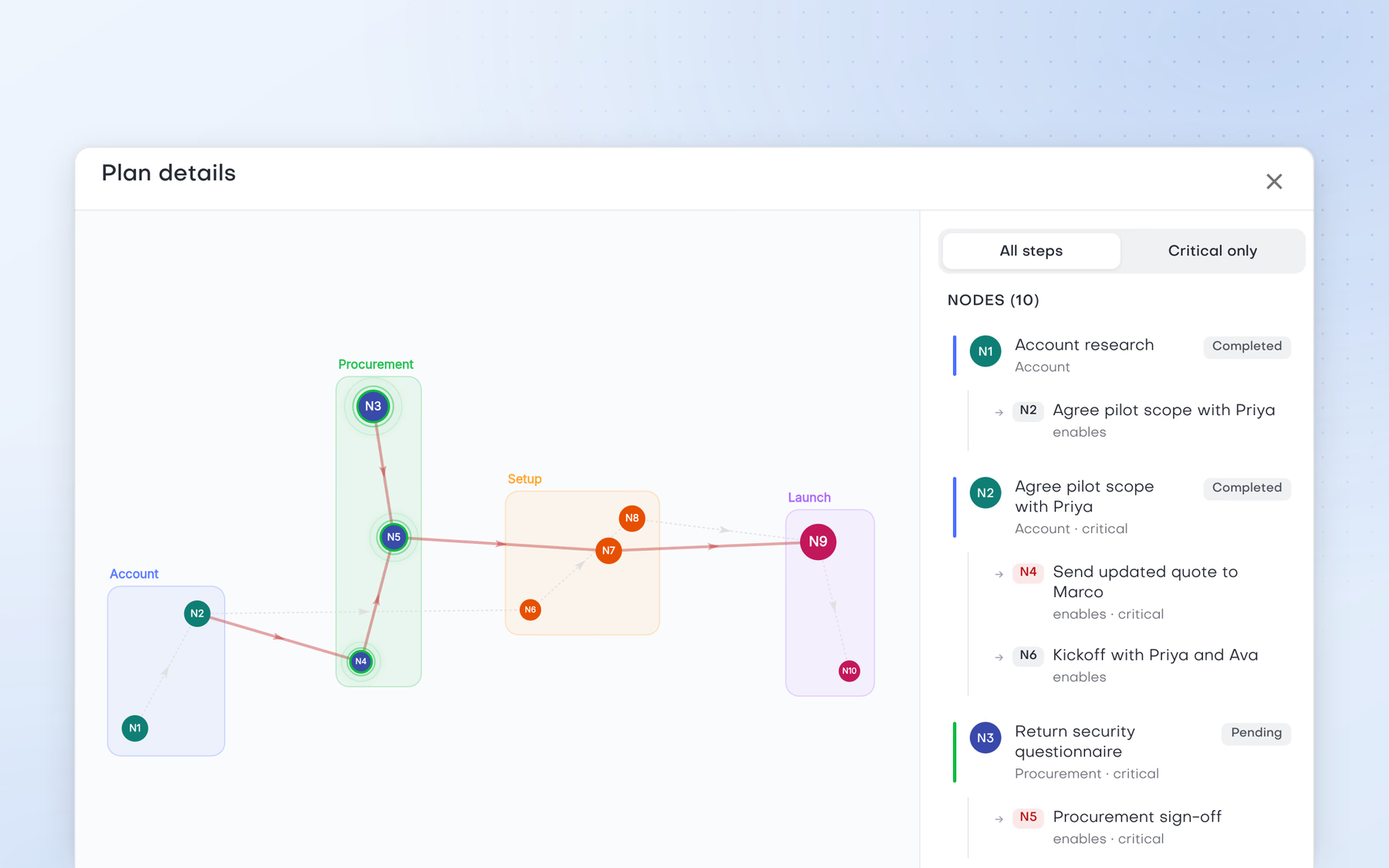
Plan details for the Aurora launch pilot: a graph of ten steps grouped into Account, Procurement, Setup and Launch, beside a node list where account research and agreeing the pilot scope with Priya are completed and the security questionnaire is next.

Inspect the plan

Inspect the steps and dependencies in a plan before deciding how to proceed.

The web app starts in Manual mode and remembers your choice in each browser.

Run a launch from one project

Scattered chats. One launch project

Project

For anyone running a launch, a campaign or a piece of client work over several weeks. Keep every chat for that work in one project, with whichever assistant suits the task.

Projects in the AI workspace + Agent memory

  1. Create a project from the chat sidebar with New project and name it after the launch.
  2. Start each chat inside the project. Shape the positioning with the Strategy assistant, draft launch content with the Marketing assistant and ask the Guider how a feature works, all in the same project.
  3. Share the launch's goals, audience, timelines and decisions as you go. With memory on, project memory brings them into every chat in that project, so a new chat starts from what you already agreed.
  4. Projects are private to you. Deleting a project keeps its chats and moves them back to your main chat list.
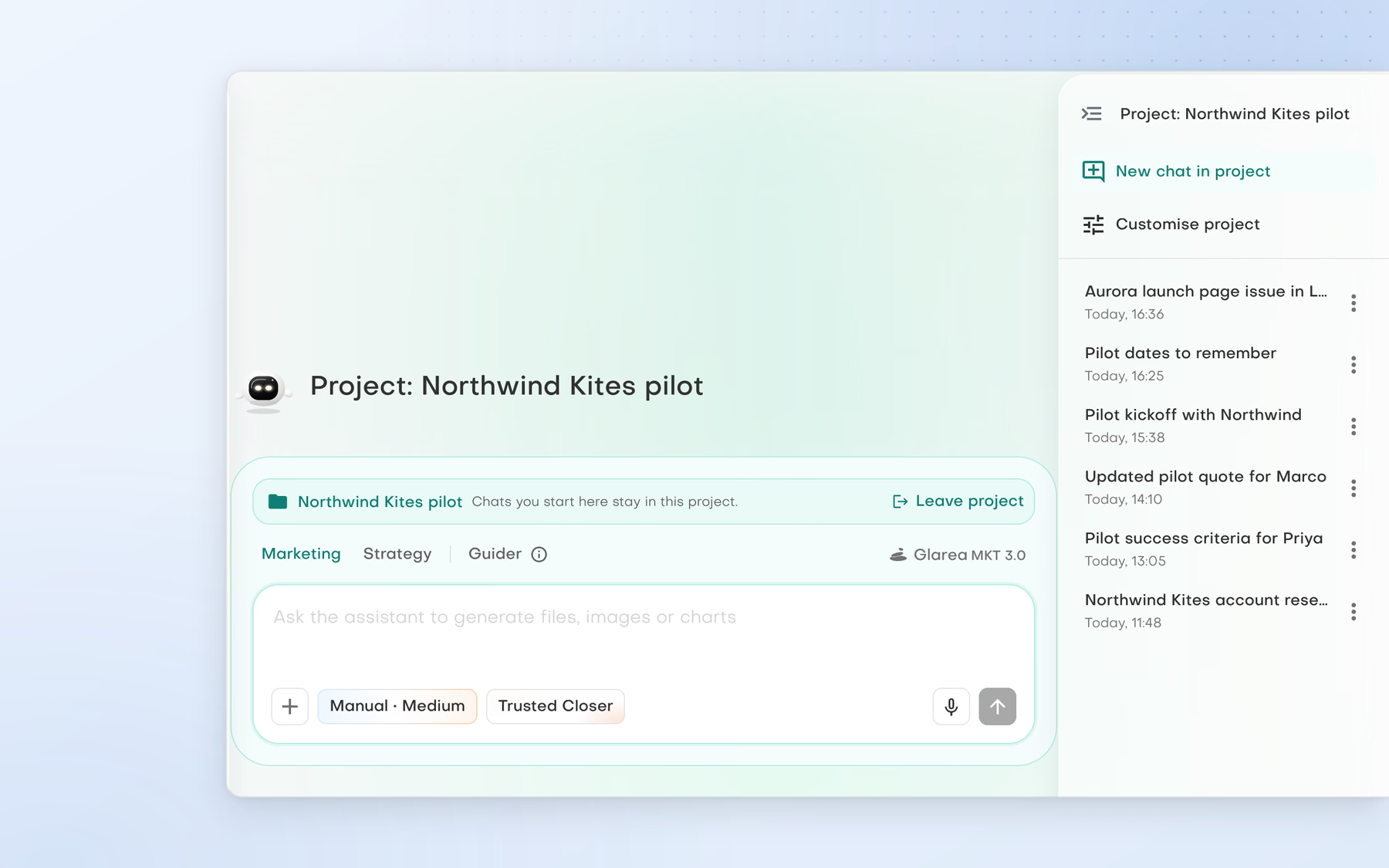
Pebbles Ai project 'Northwind Kites pilot': the composer notes that chats started here stay in the project, and the project panel lists New chat in project above six filed chats, from 'Aurora launch page issue in Linear' to 'Northwind Kites account research'.

Projects keep the work together

File chats under a project. New chats started there stay in it, and the project panel lists every chat filed so far.

Turn a Notion page into a Slack update

Write it in Notion. Share it in Slack

Notion to Slack

For the person who keeps the team informed. Your assistant reads the page, drafts the update and posts it to Slack in the way your execution mode allows.

Integrations

  1. An admin connects Notion for the workspace, sharing the pages assistants may read, and adds the Pebbles bot to the Slack channels you choose.
  2. Ask the Marketing or Strategy assistant to read the shared launch page in Notion and draft a short summary for the team.
  3. Review the draft in chat and ask for changes until it reads right.
  4. Posting to Slack is an action that follows your execution mode. Manual asks first with a “Run these actions?” approval, Plan queues the post and Auto runs it.
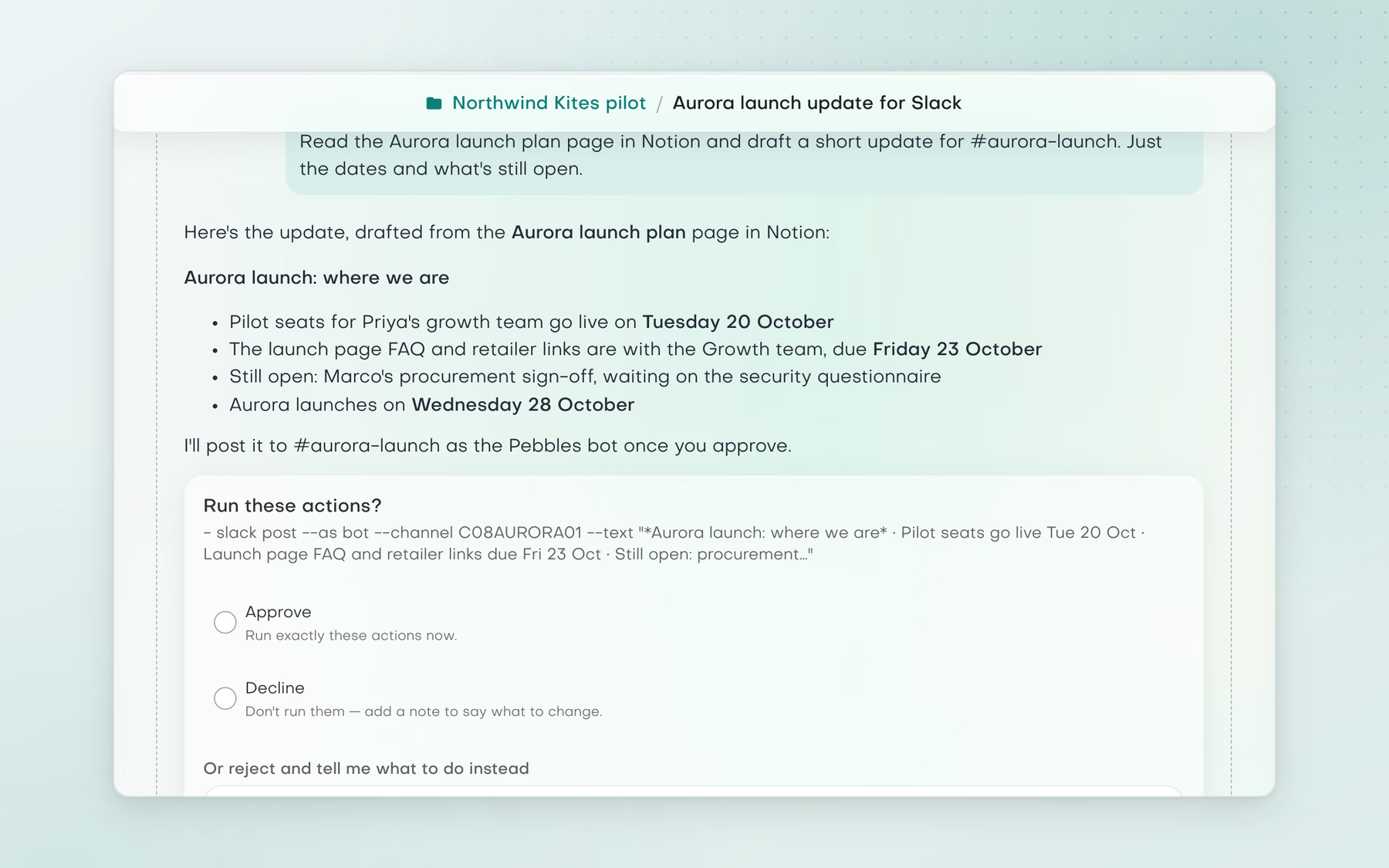
In the Northwind Kites pilot chat 'Aurora launch update for Slack', the assistant drafts a #aurora-launch update from the Aurora launch plan page in Notion, then shows a Run these actions? card for the Slack post with Approve, Decline and a box to say what to do instead.

Review the update before it posts

The assistant drafts from the shared Notion page, and in Manual mode asks before posting to Slack.

Assistants see only the Notion pages shared with the connection, and the Pebbles bot reads and posts only in the channels it was added to.

Use your other tools through MCP

Bring your tools into the chat

MCP servers

For anyone whose work also lives in other services. Connect an MCP server from the Pebbles Ai catalogue and the Marketing and Strategy assistants can use its tools in chat.

Integrations

  1. In Settings, Connections, MCP servers, connect a server from the Pebbles Ai catalogue, such as Linear or Stripe, and sign in with that service's own account. Each person connects their own servers.
  2. Ask the Marketing or Strategy assistant for what you need. It discovers the tools the server offers and uses the ones that fit.
  3. MCP actions follow your execution mode. Manual shows a “Run these actions?” card listing each call, Plan queues them and Auto runs them without asking.
  4. What a server returns is treated as data, never as instructions to your assistant.
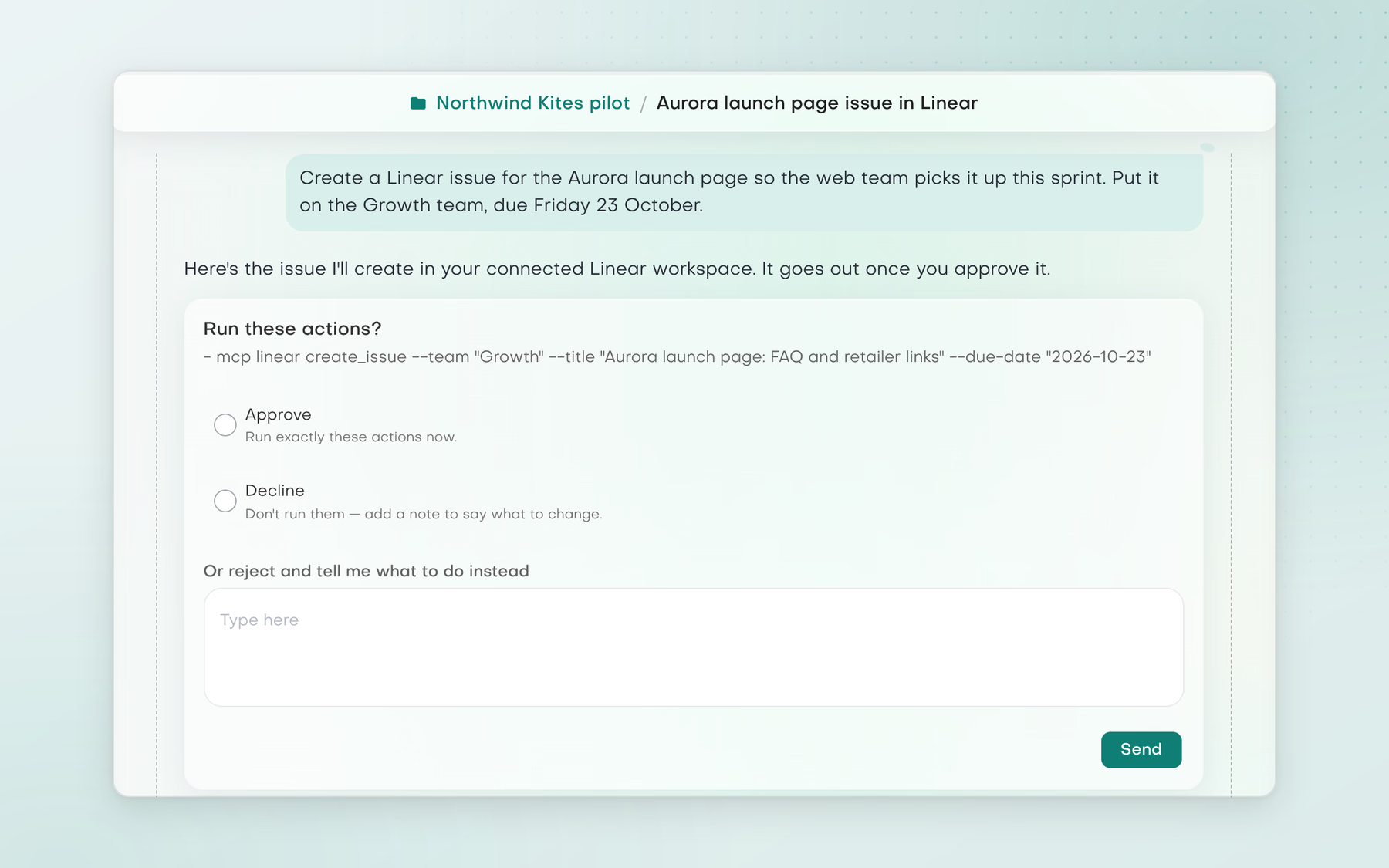
In the Northwind Kites pilot chat 'Aurora launch page issue in Linear', the assistant prepares a Linear issue for the Growth team due 23 October and shows a Run these actions? card with Approve, Decline and a box to say what to do instead.

Approve before it runs

When the assistant asks before acting, it shows exactly what it will run and waits for your answer.

Marketing

On-brand work, ready to reuse

Keep every campaign on brief and in your own voice.

Start with the Marketing assistant. Then pick any of the 3 ways to work below.

Write in your own voice

Make the brand voice explicit

Brand voice

For the marketer who wants every draft to sound like the company, not like a template.

Company Intel + Smartbox

  1. Open Brand voice in Company Intel and work through Conviction, Audience, Message and Expression, section by section.
  2. Start from the brand voice extracted from your website and files, then edit each answer in your own words.
  3. Supported workflows take their context from it, including the drafts Write with AI prepares in Smartbox.
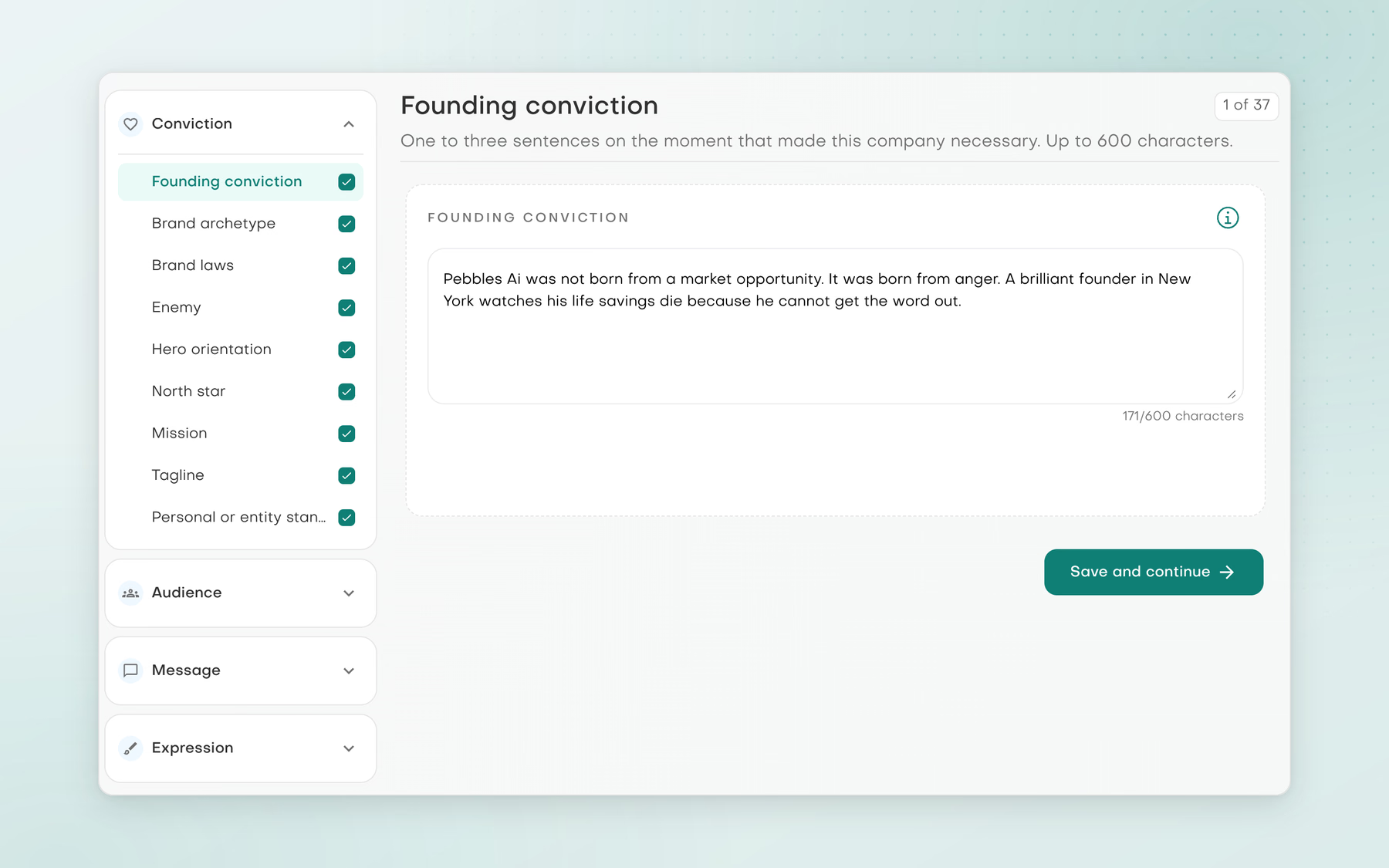
Company Intel Brand voice editor with nine completed Conviction sections, the Audience, Message and Expression groups, and the Founding conviction answer for Pebbles Ai.

Brand voice, section by section

Work through Conviction, Audience, Message and Expression, and edit each answer in your own words.

Build a campaign

One brief. Every touch drafted

Campaign

For the marketer planning a launch or a nurture campaign across email and LinkedIn.

Outreach content + AI workspace

  1. Choose single-touch or multi-touch, up to seven touches, and a persona for each piece.
  2. Develop each email in its own editor, then review the sequence as a whole.
  3. Ask the Marketing assistant for on-brief images in the chat to go with the campaign.
  4. Generated emails are saved as drafts in your connected Gmail or Outlook mailbox, and LinkedIn messages are drafted for you to send.
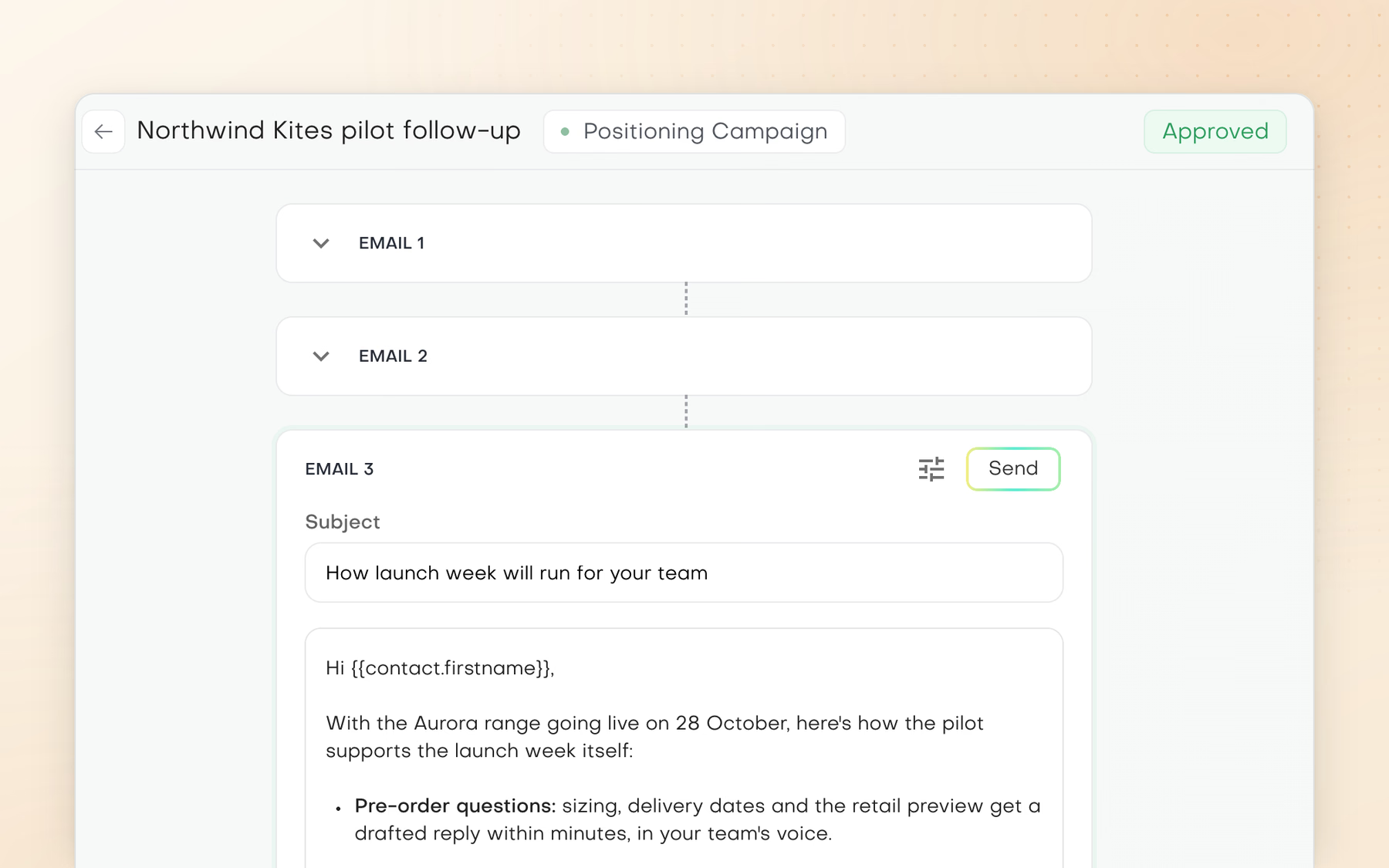
The approved Northwind Kites pilot follow-up positioning campaign, with emails 1 and 2 collapsed and Email 3, 'How launch week will run for your team', open on its subject and first launch-week point.

A campaign, email by email

Develop each email of a multi-touch campaign in its own editor, then review the sequence before choosing how to send it.

Campaign emails are saved as drafts rather than sent as an automated sequence.

Review before you reuse

Approved work, ready for the team

Library

For marketing teams on Team plans and above that want one agreed place for the work they reuse.

Company Intel

  1. Keep supported outputs, such as campaign emails, in the Library.
  2. Send selected work for review. It waits in Pending review, where teammates can comment, until it is approved.
  3. Reuse what is Approved, so the next campaign starts from work the team already agreed.
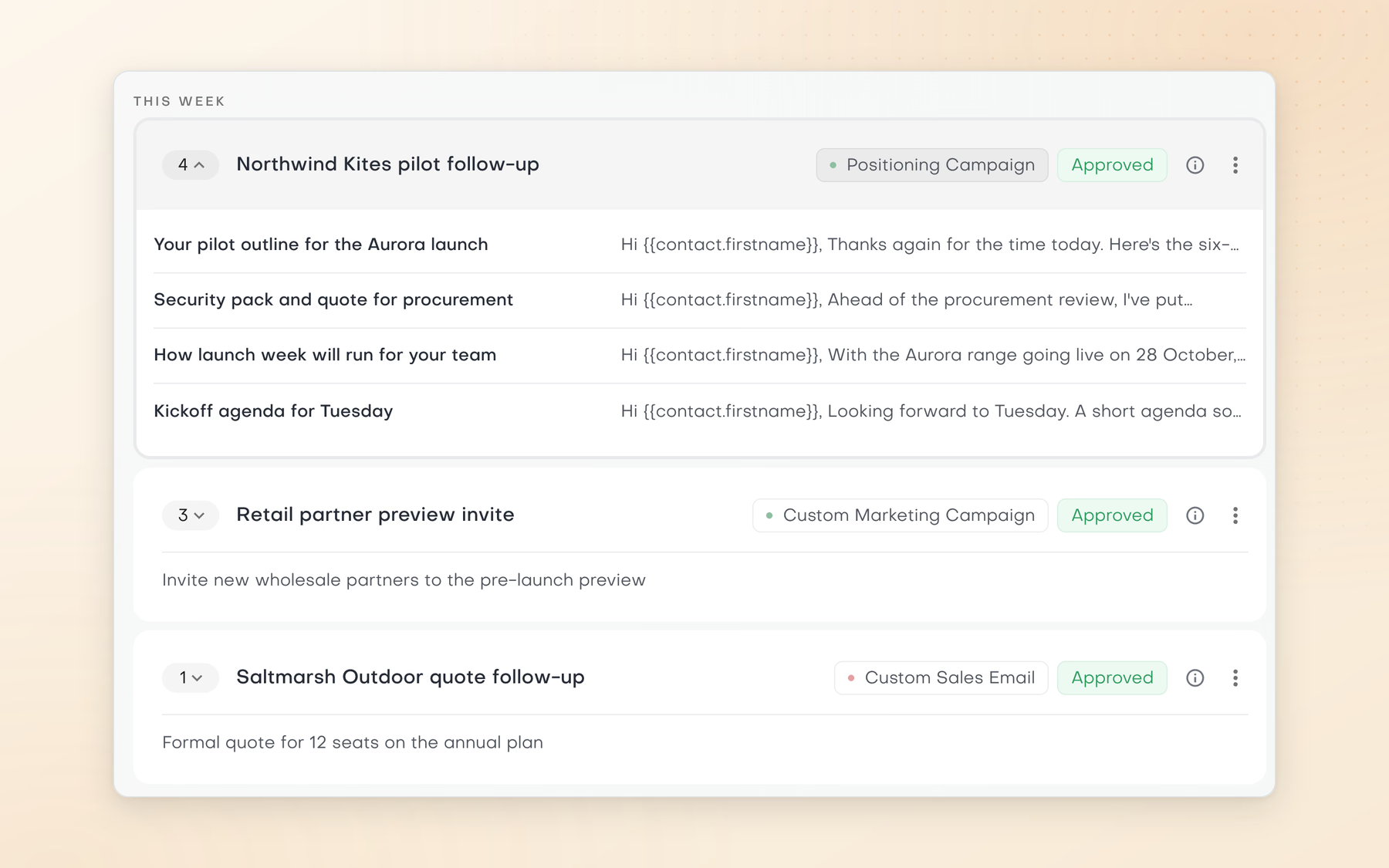
This week in the approved Email Outbound library: the Northwind Kites pilot follow-up expanded to its four emails, from the Aurora pilot outline to the Tuesday kickoff agenda, above Retail partner preview invite and Saltmarsh Outdoor quote follow-up, all marked Approved.

Review and reuse

Keep supported outputs in the Library and move selected work through review before reuse.

With connected social publishing accounts, your assistant can publish or schedule posts, manage them afterwards and report on how your posts performed.

Sales / BD

Right people.
Next meeting

Find the right people and keep every conversation moving.

Start with the CRM. Then pick any of the 3 ways to work below.

Find the right people

Pick a segment. Review every message

Prepare

For anyone balancing business development with the rest of the business. Find the right people, keep them in your CRM and prepare communication before choosing how to deliver it.

Prospecting & customer records + Outreach content

  1. Describe your ideal customer. Your assistant finds matching companies, then the right people at up to ten of them.
  2. Start a lead generation run from chat or with Find fresh leads in your CRM contacts, approving it if you work in Manual mode. Leads land as CRM contacts in a segment, and each lead found uses one lead from your wallet.
  3. Build a campaign of email and LinkedIn touches. Emails are saved as drafts in your connected Gmail or Outlook mailbox; LinkedIn messages are drafted for you to send.
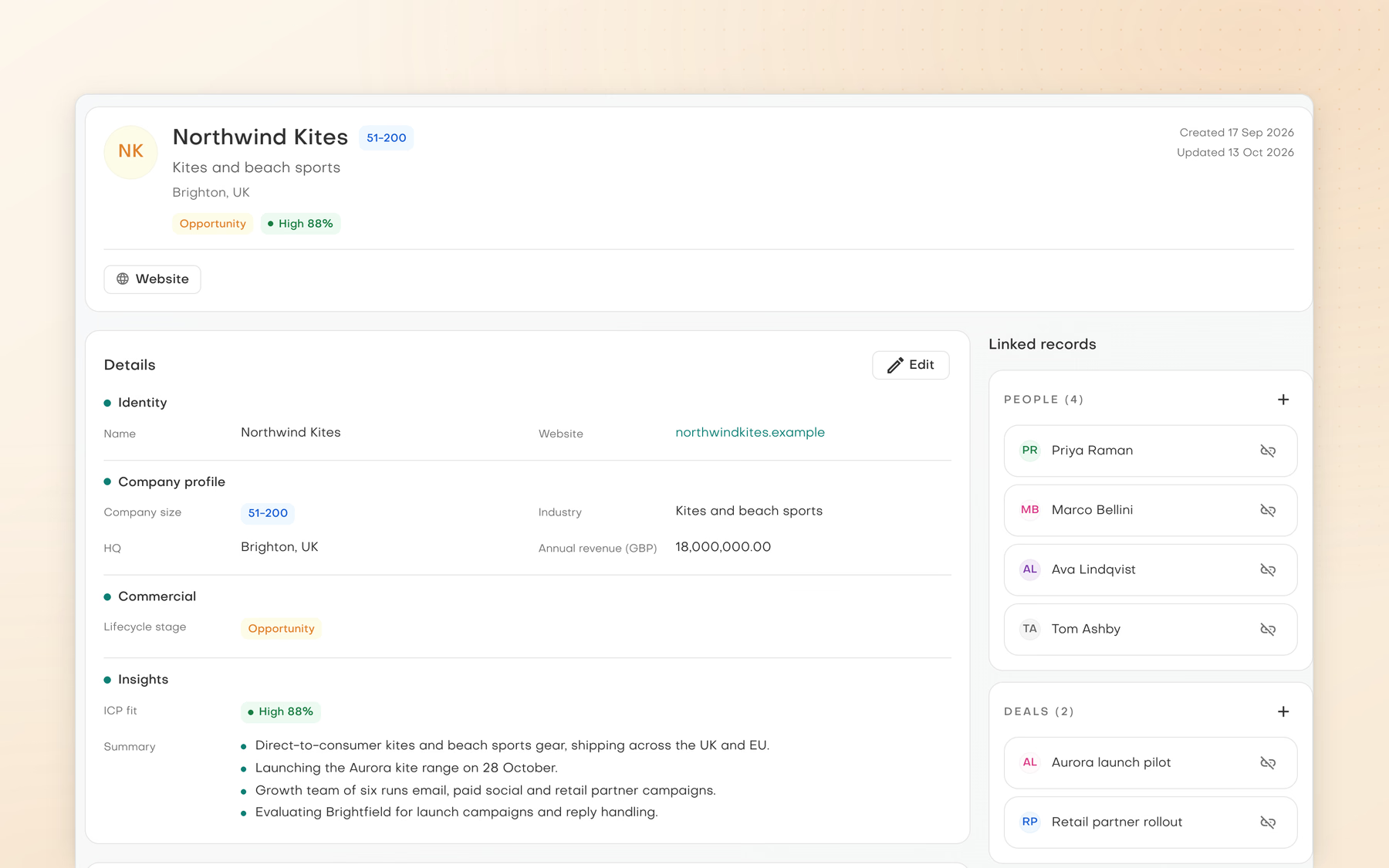
Northwind Kites company record: a Brighton kites brand at Opportunity stage with 88% ICP fit, its company details and insight summary, beside linked people and deals.

One record, linked work

See a company's details, insight summary, people, deals, tasks and notes on one record.

Campaign emails are saved as drafts rather than sent as an automated sequence, and Pebbles Ai never sends LinkedIn messages for you.

Reply from the thread

From a thread to a careful reply

Follow through

Keep customer communication moving while staying involved in what is sent.

Smartbox + Outreach content

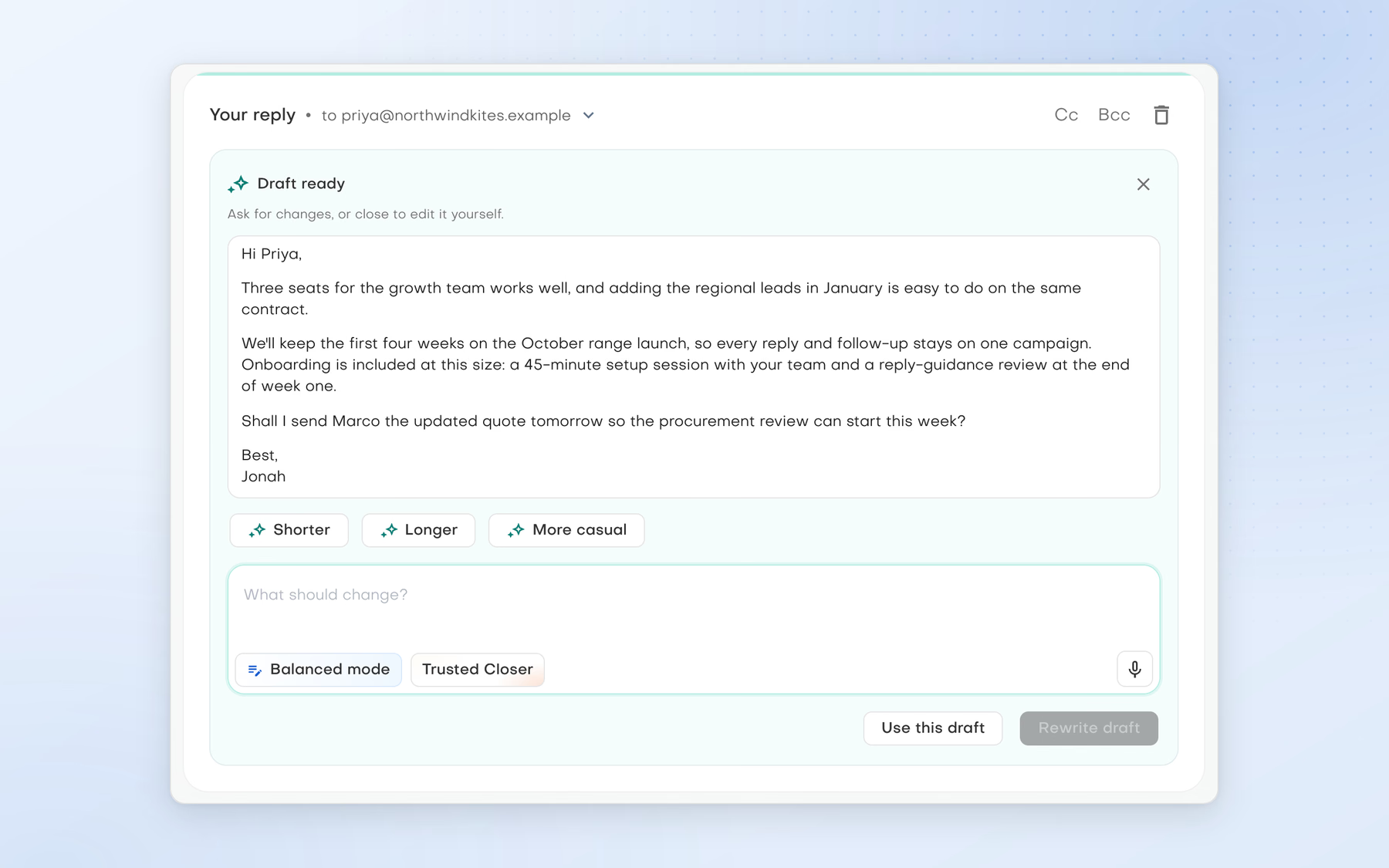
  1. Open the thread in Smartbox with a connected Gmail or Outlook mailbox.
  2. Use Write with AI in Fast, Balanced or Comprehensive mode. The draft uses the thread, recipients and brand voice.
  3. Review the recipients, attachments and content before sending.
  4. In chat, ask your assistant for a follow-up, or whether an incoming message is worth answering.
Jonah Reyes's reply to Priya Raman with a ready AI draft confirming three seats, the October launch focus and included onboarding, with Shorter, Longer and More casual options.

Reply from the conversation

Use the thread and your instructions to draft a reply, then review it before sending.

Coming soon Socialbox will bring LinkedIn, WhatsApp, Instagram and Telegram chats into Pebbles Ai beside Smartbox, together with your LinkedIn network, posts and search. Explore Socialbox

Book the next meeting

A free slot, found from the chat

Meeting

For the rep who wants the next meeting in the calendar while the conversation is still fresh.

Integrations + AI workspace

  1. Connect Google Calendar in Settings, Connections. It is available on every plan, for every user.
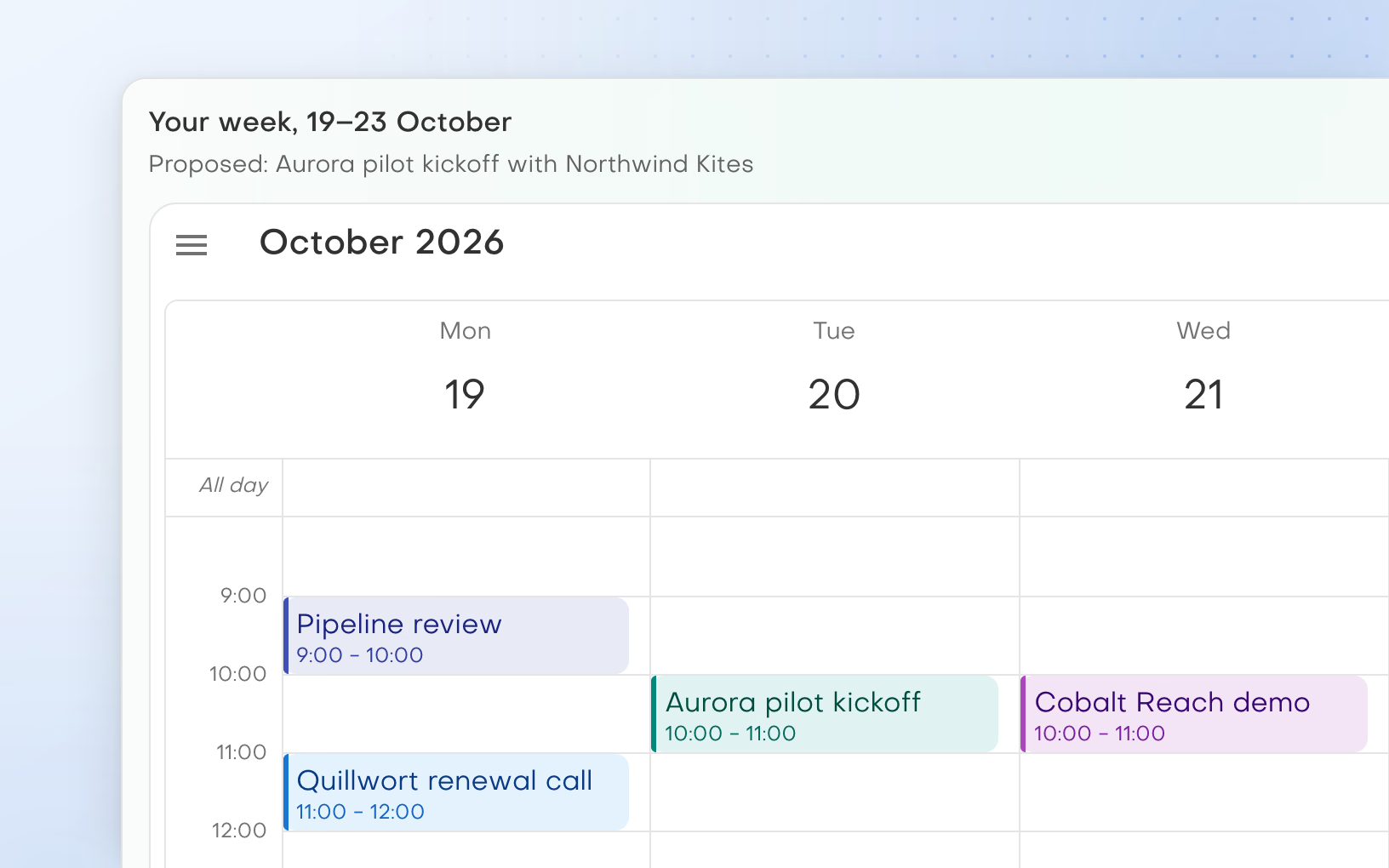
  2. Ask your assistant to find a free slot. It can show a read-only view of your calendar in the chat.
  3. Have it create the event with your guests, update it or respond to an invitation. In Manual mode each of these asks for approval first.
  4. Deleting an event always asks for approval, in every mode.
Jonah Reyes's calendar for 19 to 21 October, with the Aurora pilot kickoff with Northwind Kites placed on Tuesday from 10:00 to 11:00, clear of Monday's pipeline review and Wednesday's Cobalt Reach demo.

Find a free slot

With Google Calendar connected, an assistant can find a free slot and show your week in the chat.

Revenue / Growth

Every deal in view

See the pipeline, the accounts and the work behind them in one place.

Start with the CRM. Then pick any of the 3 ways to work below.

See the pipeline

Every open deal, by stage

Pipeline

For whoever owns the number and needs the pipeline in view without building a report.

Prospecting & customer records

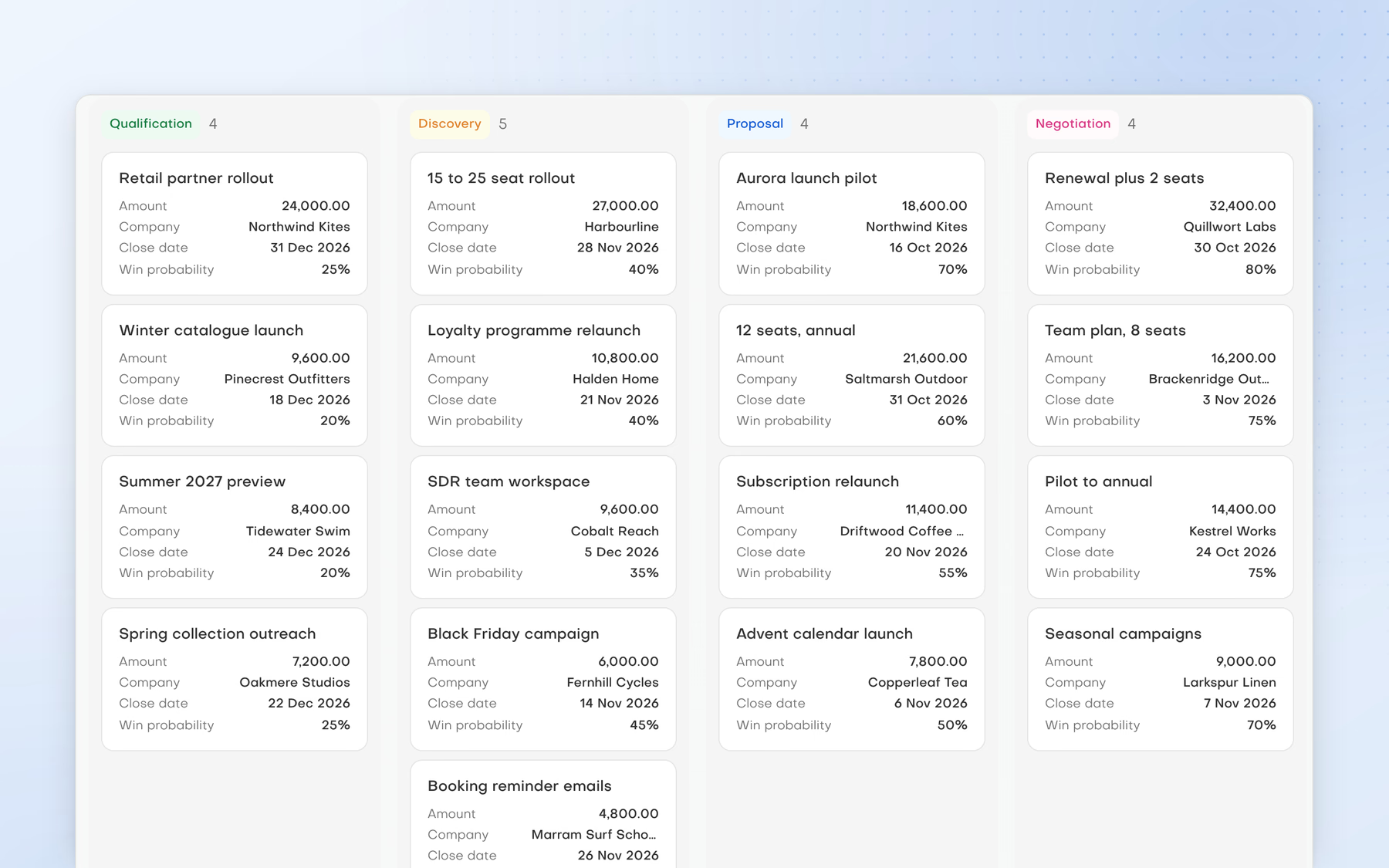
  1. Follow every open deal across Qualification, Discovery, Proposal and Negotiation, with value, close date and win probability on each card.
  2. Filter the board and save the views you come back to.
  3. Each deal holds its name, description, stage, amount, currency, close date and probability.
Deals board with Qualification, Discovery, Proposal and Negotiation columns, including the Aurora launch pilot for Northwind Kites at Proposal.

Deals by stage

Follow every open deal across Qualification, Discovery, Proposal and Negotiation, with value, close date and win probability on each card.

The CRM is in Beta. It shows the pipeline as it stands; it does not forecast revenue or attribute it to campaigns.

Keep deals moving

The deal, its people and the next task

Deal

For the person who makes sure every promising deal has a next step and someone on it.

Prospecting & customer records

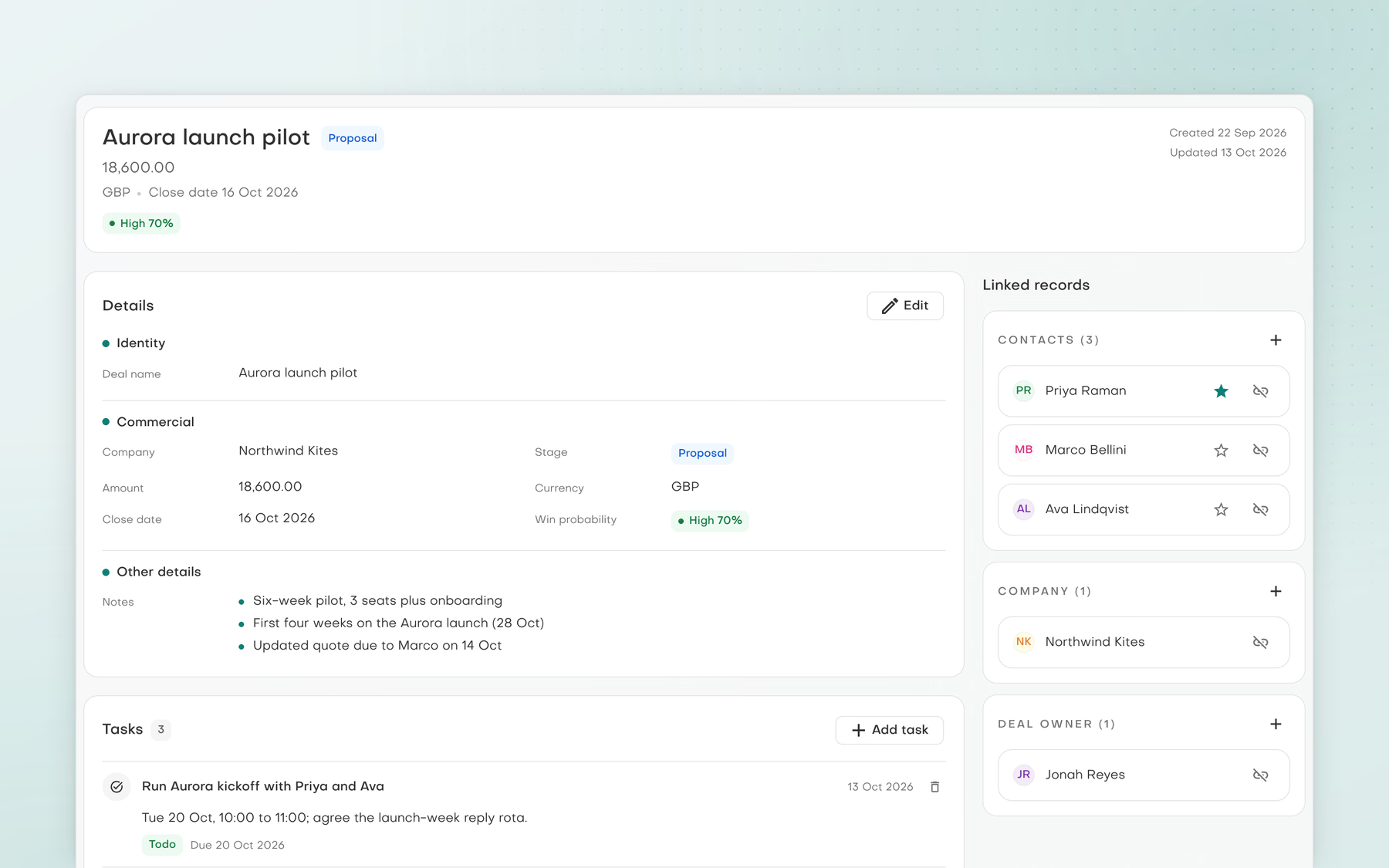
  1. Open a deal to see its stage, value, close date, notes, tasks and the contacts involved.
  2. Open the company record to see its people, deals, tasks and notes together.
  3. Keep the team's tasks on one board, from Todo through In progress to Done.
  4. An admin can add custom fields, as text, numbers, yes or no, dates or choices, to fit the way you sell.
Aurora launch pilot deal record with commercial details, pilot notes, the kickoff task and linked contacts Priya Raman, Marco Bellini and Ava Lindqvist.

The deal in detail

Open a deal to see its stage, value, close date, notes, tasks and the contacts involved.

Update a segment

One message to the right contacts

Template send

For growth work that needs one clear message to a defined group of contacts, such as the leads from your last lead generation run.

Outreach content + Prospecting & customer records

  1. Pick the CRM segment the message is for.
  2. Connect the Gmail or Outlook mailbox you send from in Settings, Connections. You can connect more than one inbox per provider.
  3. Template send delivers a template to the segment through that mailbox.
  4. Template send always asks for approval first, in every mode.
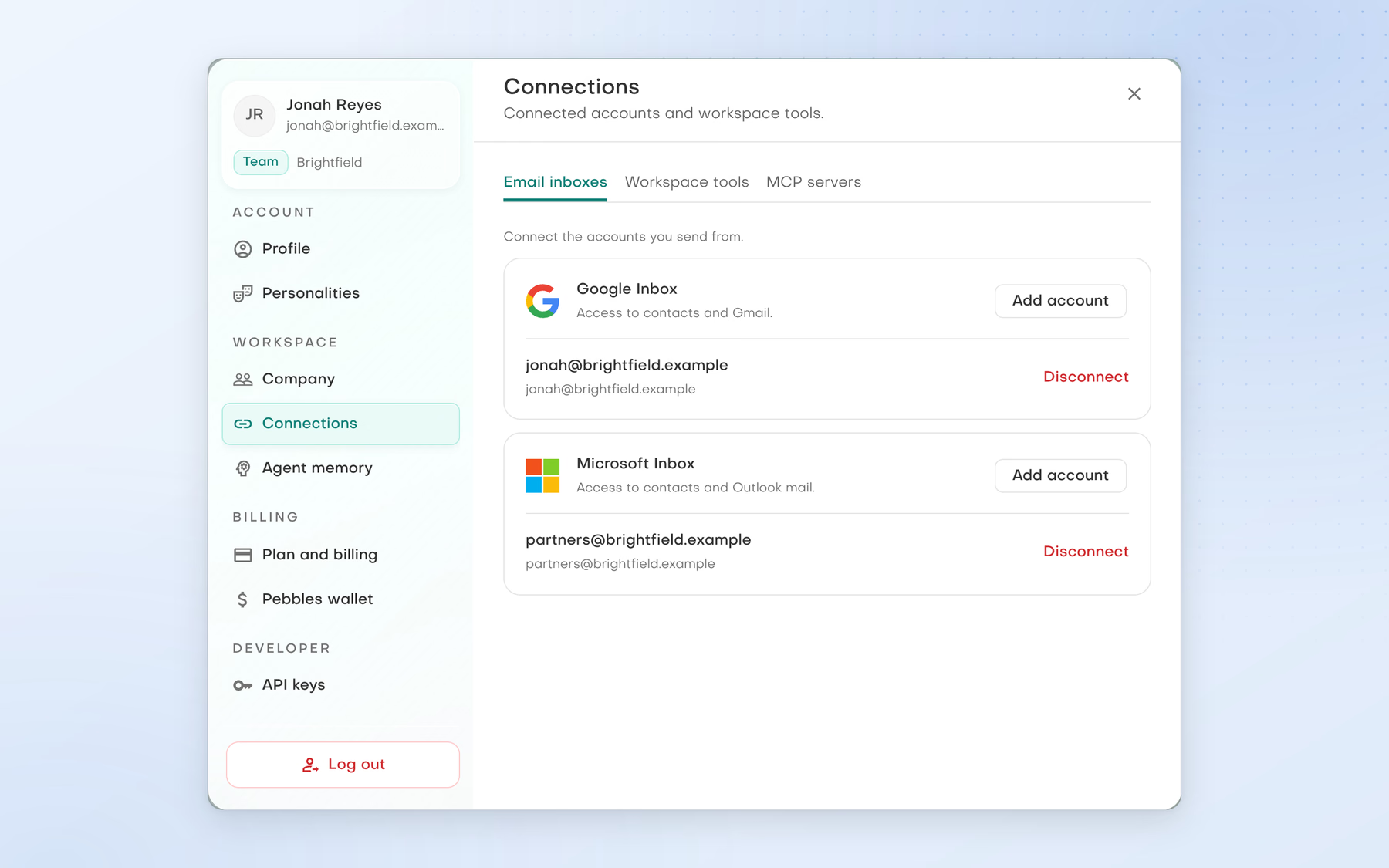
Settings, Connections, Email inboxes: a Google Inbox connected as jonah@brightfield.example and a Microsoft Inbox connected as partners@brightfield.example, each with Add account and Disconnect.

Email inboxes

Connect the Gmail and Outlook accounts you send from. Each account can be disconnected on its own.

Your next chapter

Make room for work that matters

Bring a real go-to-market challenge. See where Pebbles Ai fits your work.