We use cookies and similar technologies to keep this website working and remember your preferences. With your permission, we also measure site usage and record page interactions to help improve your experience.
Optional features stay off unless you accept them. You can change your choices at any time.
Start in Assistant chat with the Marketing and Strategy assistants, keep related chats together in Projects and choose whether actions that reach outside the workspace wait for your approval.
Start in Assistant chat with the Marketing and Strategy assistants, keep related chats together in Projects and choose whether actions that reach outside the workspace wait for your approval.
Three assistants
Learns as you work
Approval cards
Strategy workspace
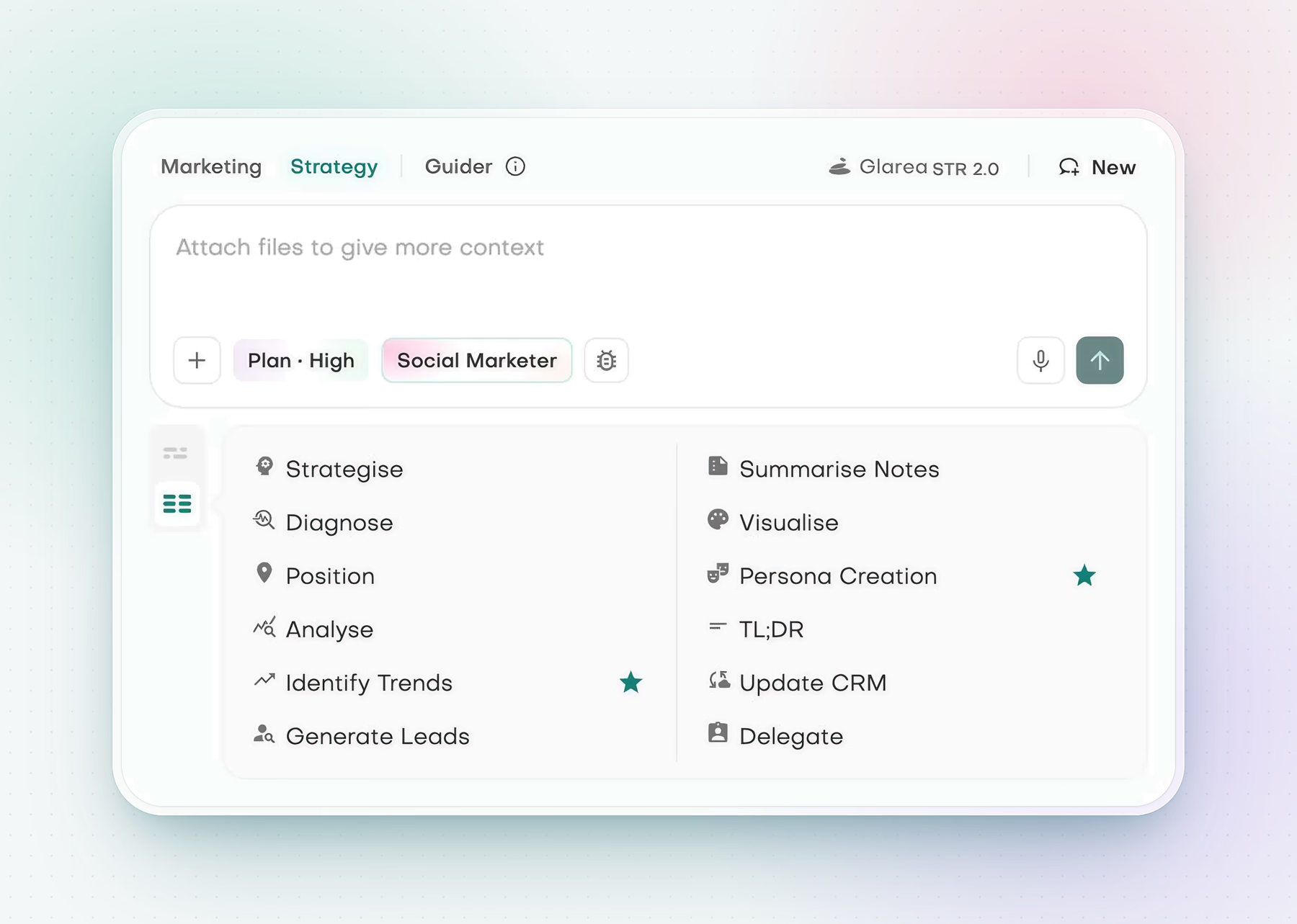
Start a strategy task from the composer or choose a focused assistant skill.
Scroll horizontally to inspect the full product view.
What you can work on
AI workspace
Three assistants, one chat
Assistant chat is the home screen. Work with the Marketing or Strategy assistant, ask the Guider for help getting set up, and let one assistant delegate work to another from inside the chat. Generate on-brief images in the chat, or ask the Strategy assistant for a spreadsheet, a document or a slide deck and download the file. Dictate by voice or upload audio for transcription. On Team plans and above, invite colleagues as Creators, Managers or Admins and get notifications for reviews, comments and credits.
Projects and memory carry the context
Keep the chats for one piece of work together in a project, with any assistant. With Agent memory switched on, the assistants remember the facts you share about yourself, a project and your company, so the next chat builds on what you said last time. Company memory reaches your colleagues' assistants too.
Approval cards in Manual mode
Assistants can use Google Calendar and MCP servers you add in Connections, post to Slack and read or write Notion pages from the chat. Choose Auto, Plan or Manual, and how much effort the assistant puts in. In Manual, sends, posts, CRM writes, MCP calls, Slack and Notion actions, calendar changes and starting lead generation wait for an approval card; Plan queues them and Auto runs them.
Projects
One piece of work, one place
A project gathers the chats for one piece of work, such as a pilot, a launch or an account plan. Create one with New project, then start each chat inside it.
Projects keep the work together
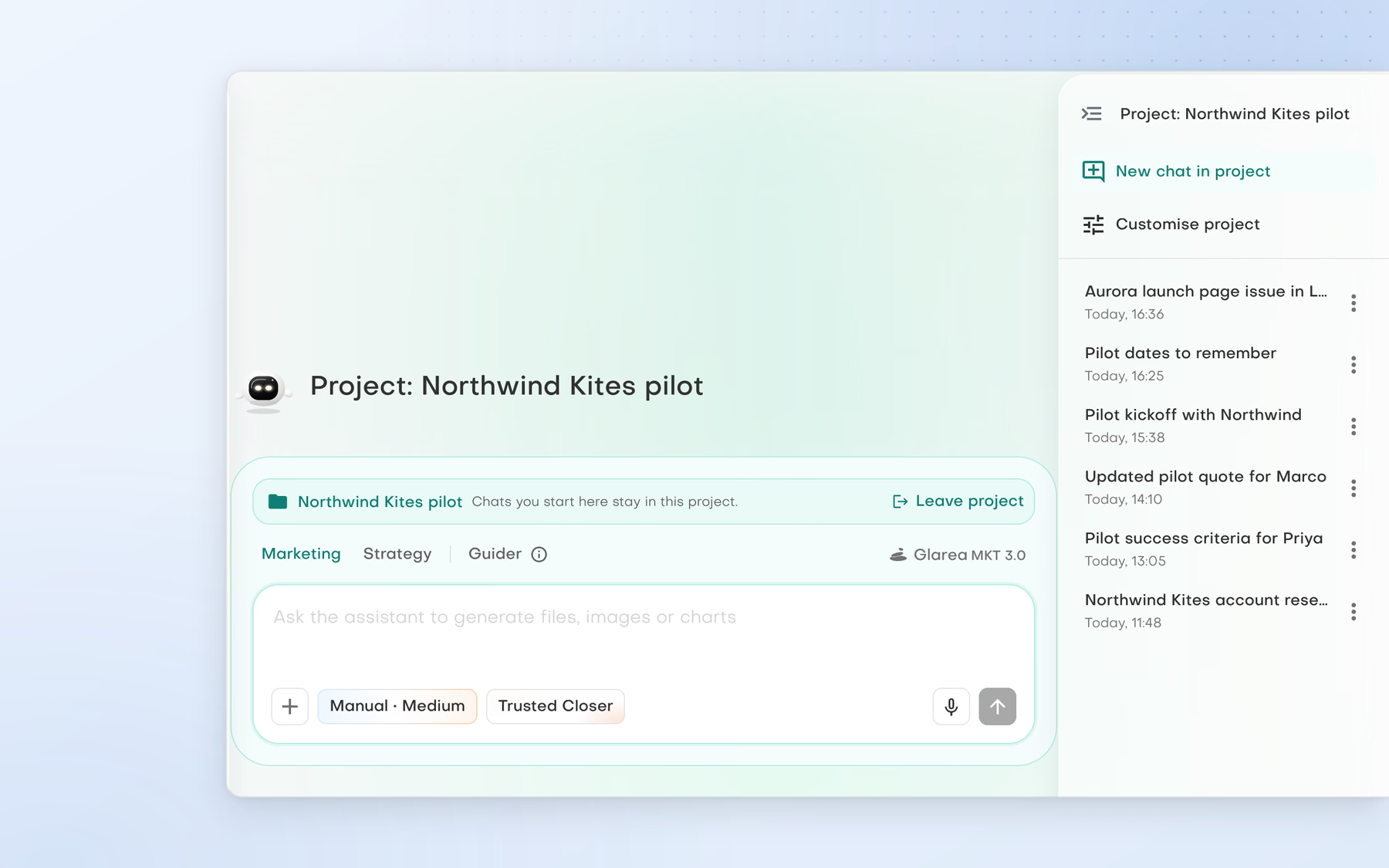
File chats under a project. New chats started there stay in it, and the project panel lists every chat filed so far.
Every chat for the work, together
Chats you start in a project stay in it, with the Marketing assistant, the Strategy assistant or the Guider. Deleting a project keeps its chats: they return to your main chat list.
Project memory carries the decisions
With Agent memory on, the goals, audience, timelines and decisions you state in a project's chats are remembered for that project and brought into every chat filed under it.
Projects belong to the person who creates them, and so does each project's memory. Colleagues work from company memory and Company Intel, which everyone in your workspace shares.
Current product view
See the workspace in practice
A focused workspace for your question, your approach and the voice you write in.
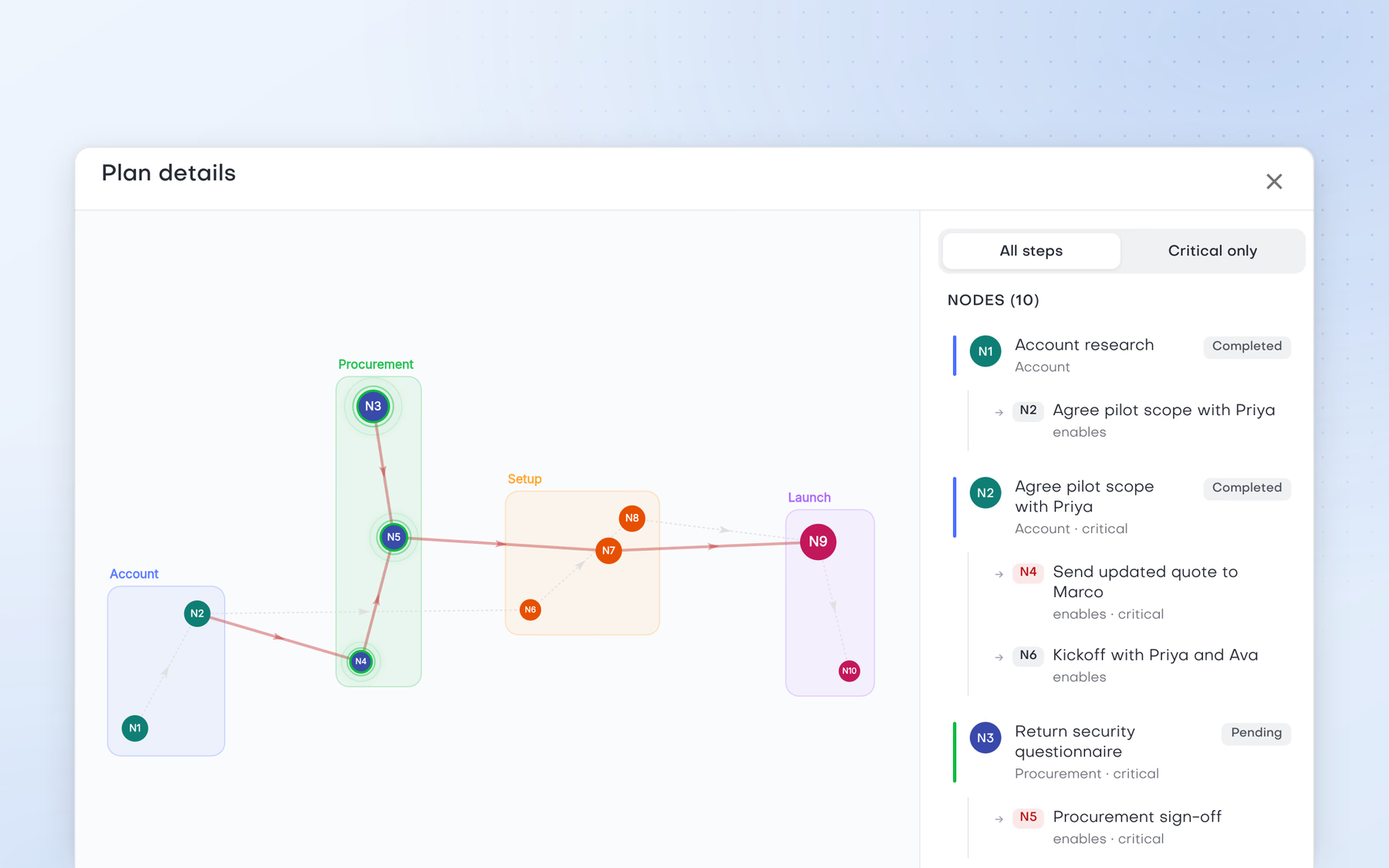
Inspect the plan
Inspect the steps and dependencies in a plan before deciding how to proceed.
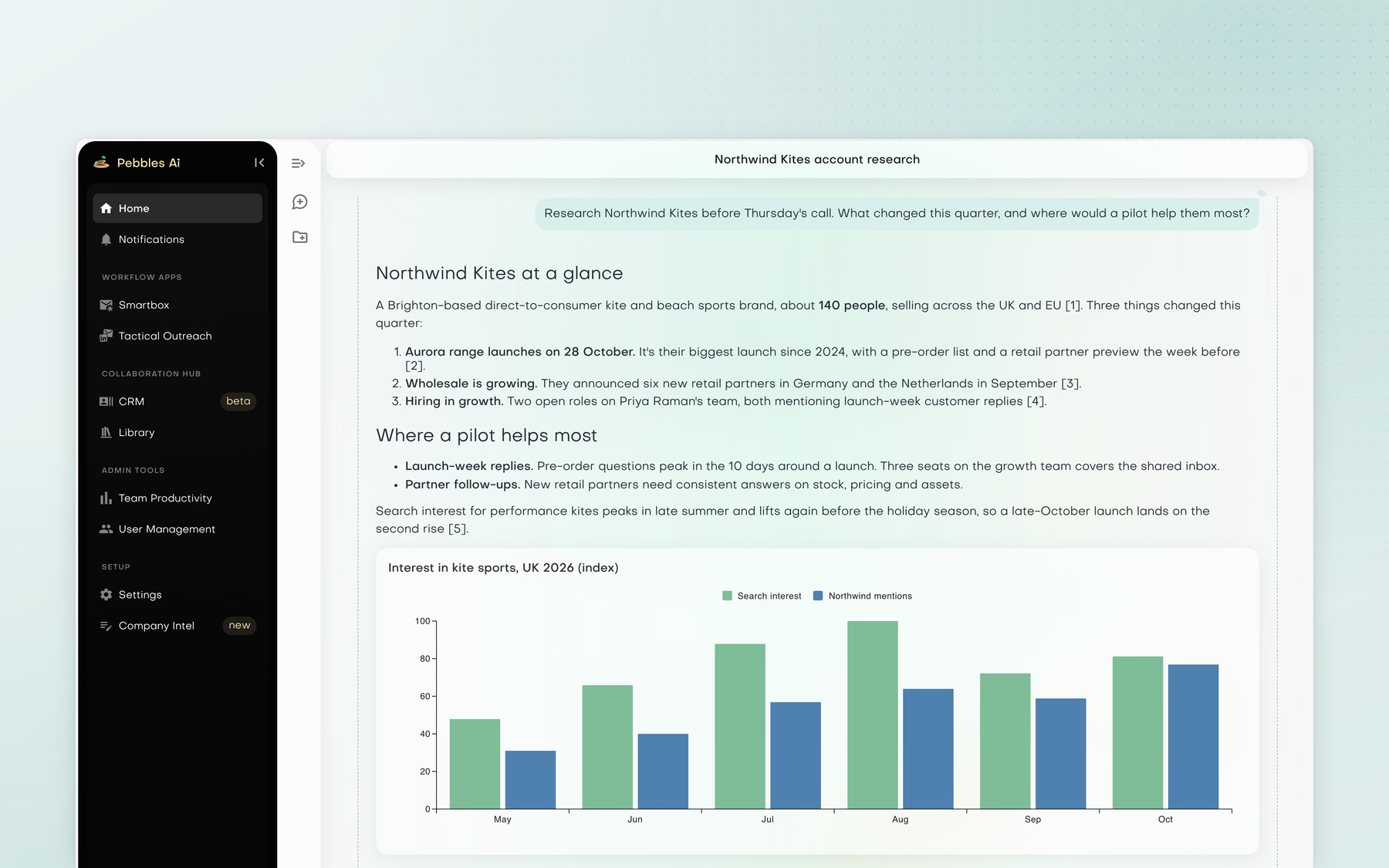
Research with sources
Ask for account research and get findings, reasoning and a chart in the chat, with every claim linked to its source.
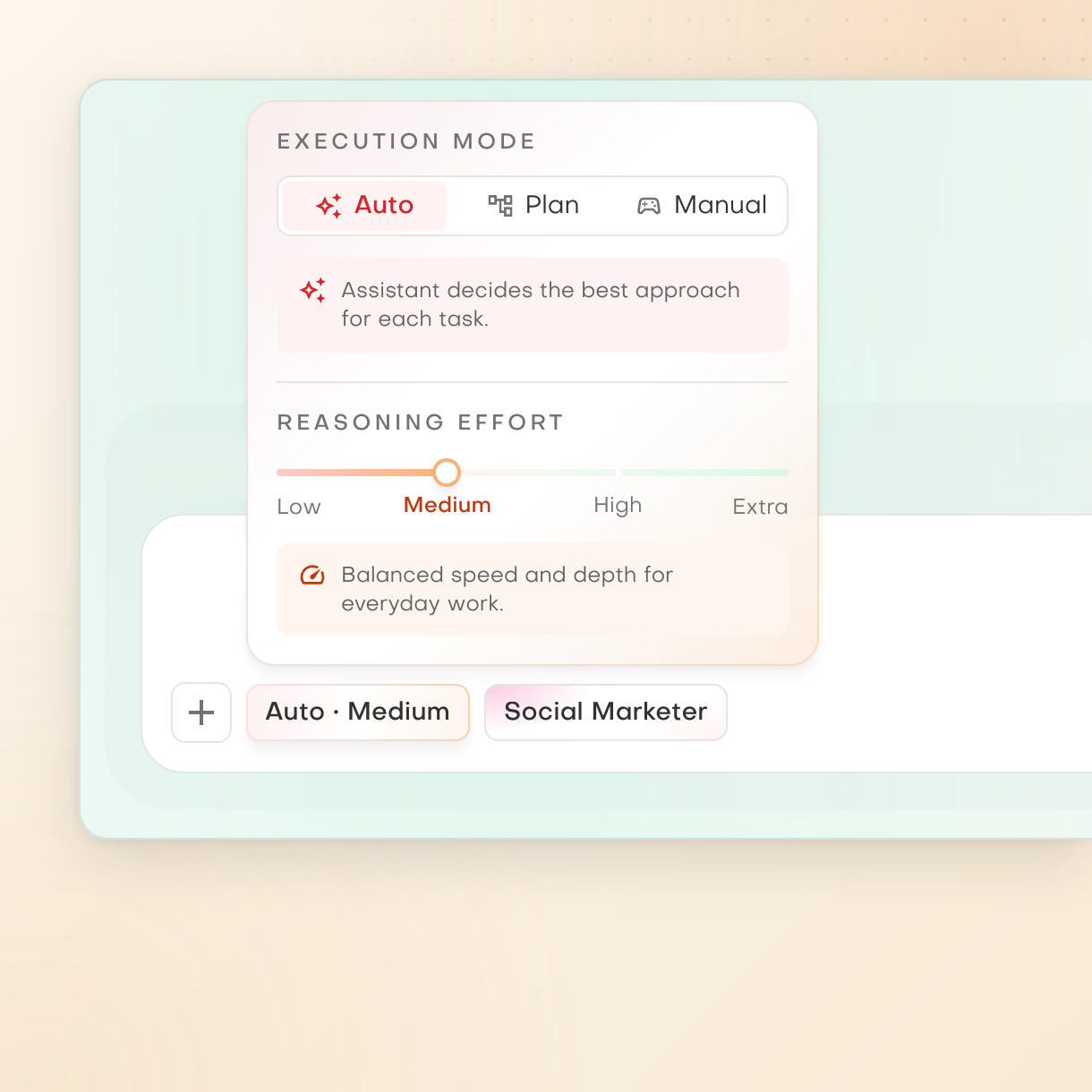
Auto mode
The assistant decides the best approach for each task. Shown with Medium effort and the Social Marketer personality.
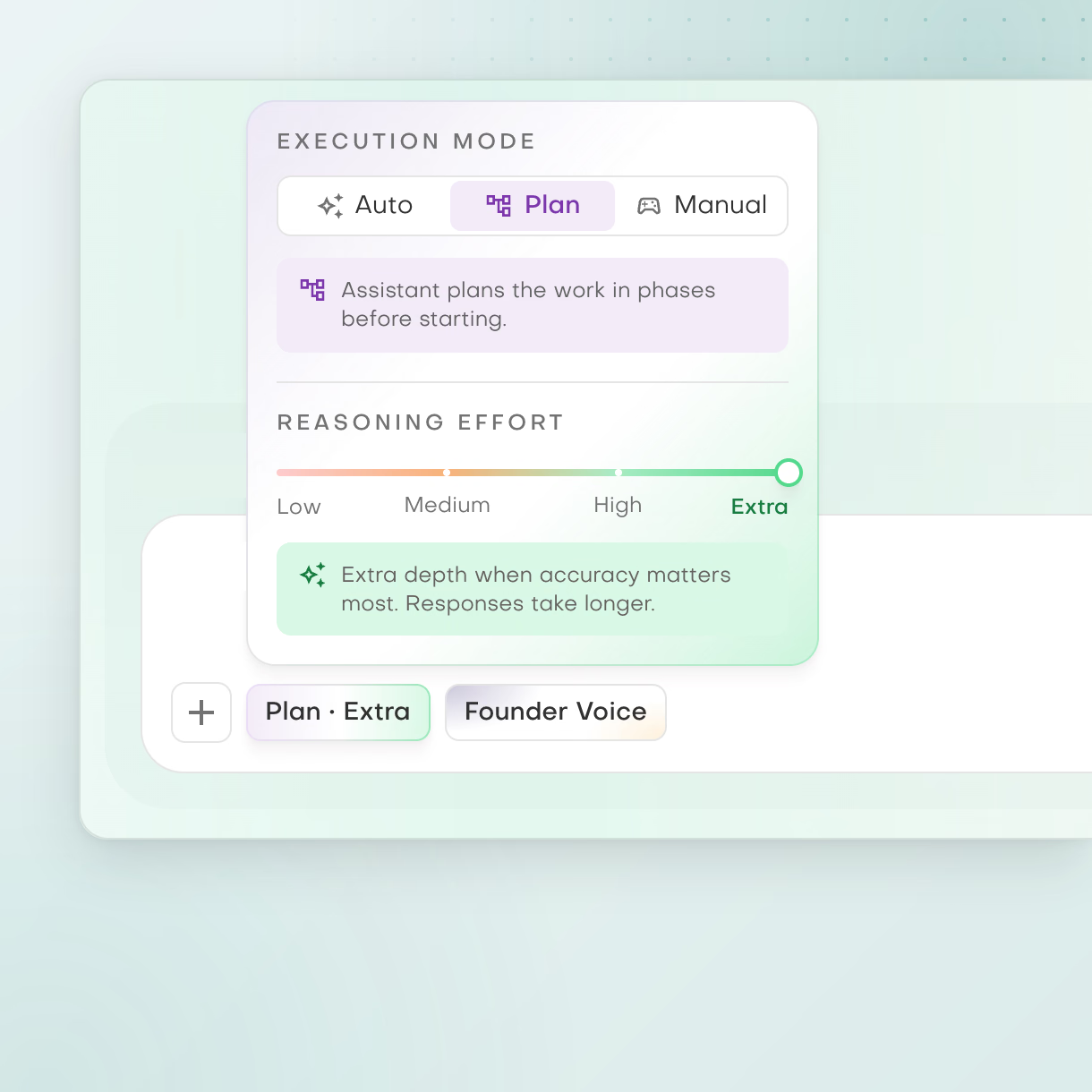
Plan mode
The assistant plans the work in phases before starting. Shown with Extra effort and the Founder Voice personality.
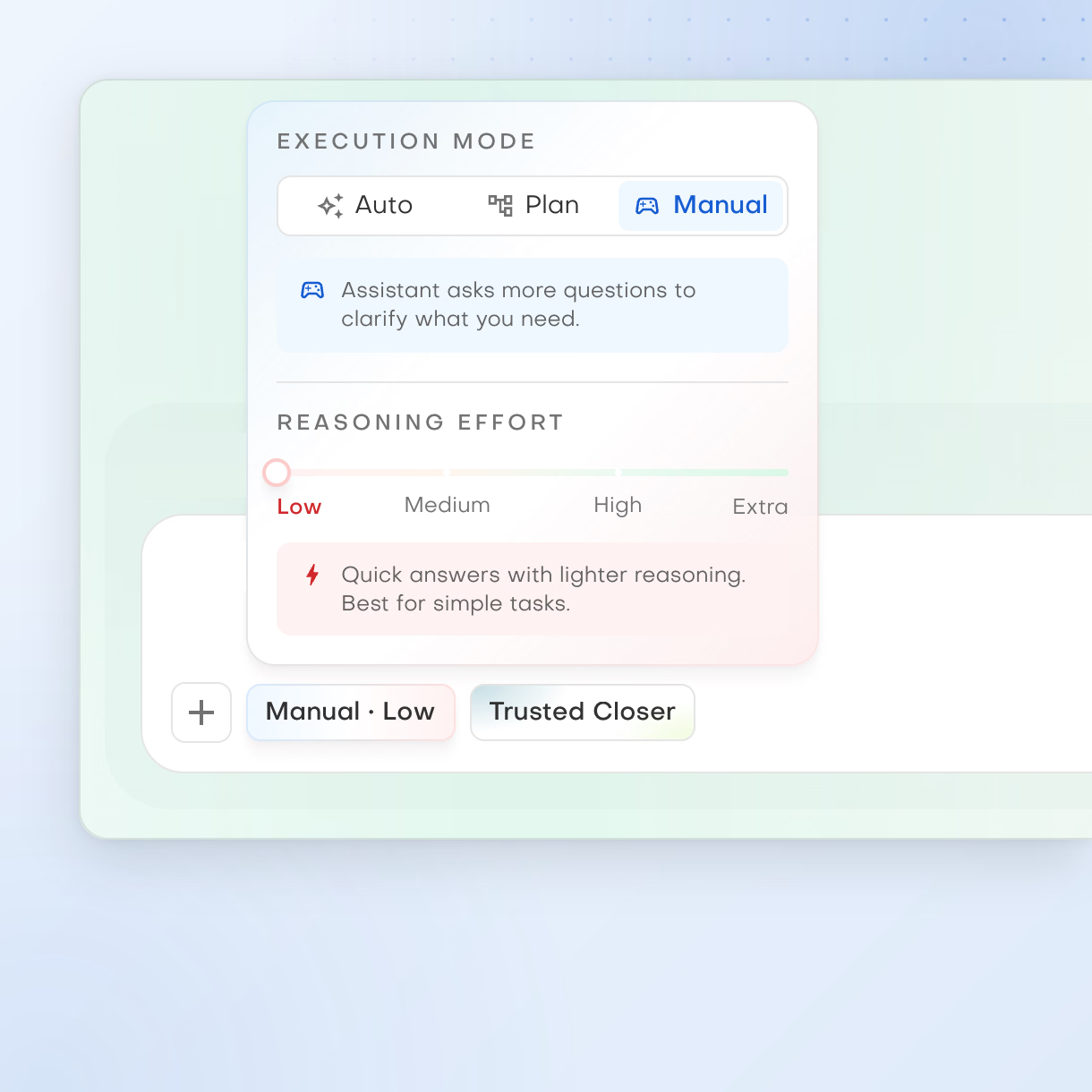
Manual mode
The assistant asks more questions to clarify what you need, and asks before each action it takes. Shown with Low effort and the Trusted Closer personality.
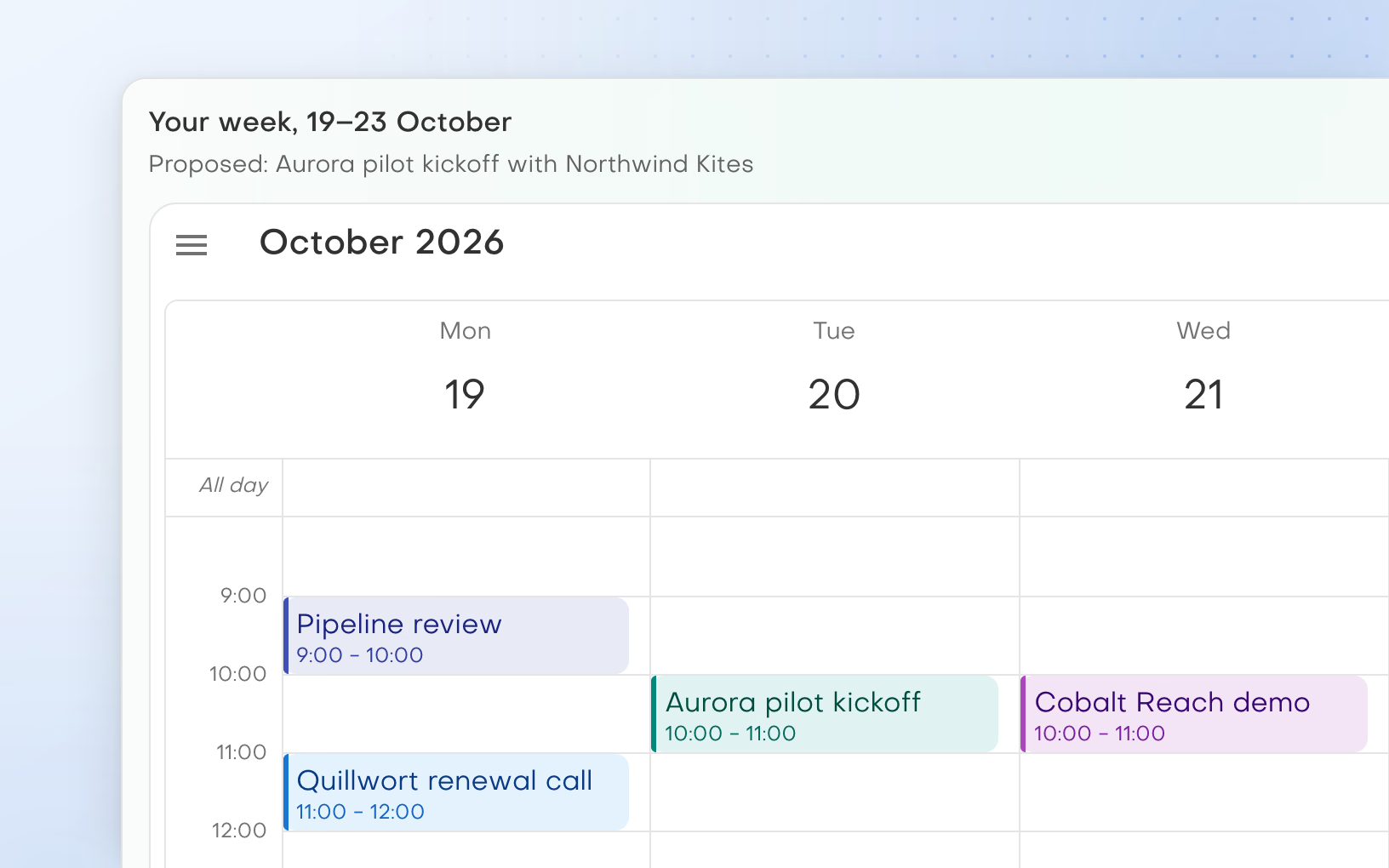
Find a free slot
With Google Calendar connected, an assistant can find a free slot and show your week in the chat.
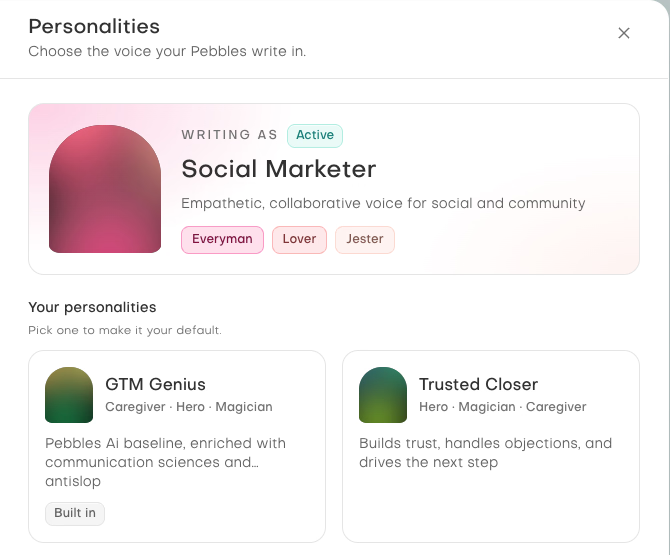
Assistant personalities
An assistant personality shapes how Pebbles writes in a chat. It is separate from your organisation's Company Intel and brand voice.
Scroll horizontally to inspect the full product view.
A practical starting point
How to approach the work
Pick an assistant and describe the outcome, inside a project if it belongs to one.
Type / to pick a skill: research, strategise, write now, polish up, update the CRM and more. Then work through the plan and drafts in Assistant chat.
Approve the actions your chosen mode holds for you and decide what to use next.
These assistants give my team and me what no generic AI can: real strategic clarity and practical execution. It’s like having a digital strategy consultancy and content agency.
Michael BlakeleyFounder & CEO, Entrepreneurs Collective
Clear answers
Common questions
What is the Pebbles Ai workspace?
It is where your sales and marketing work starts. Assistant chat is the home screen. The Marketing and Strategy assistants help with research, strategy and execution. The Guider helps you get set up. Projects keep related chats together.
Which assistant should I use?
Start with the Marketing or Strategy assistant for your work, and ask the Guider for help with Pebbles Ai itself. You do not need to pick perfectly. One assistant can pass part of a task to another inside the chat, so you do not need to switch between them yourself.
What can the assistants make for me?
Plans, research, messages and files. The assistants can generate on-brief images in the chat. The Strategy assistant can make a spreadsheet, a document or a slide deck for you to download. You can also dictate by voice, or upload audio to turn it into text.
Why use one workspace instead of separate AI chats?
Because the context stays with the work. The assistants work from your Company Intel and Agent memory, so you do not repeat your company brief in every chat. Projects keep related chats together. The assistants can also use the tools you connect, such as your inbox and calendar.
How do I keep the chats for one piece of work together?
Put them in a project. Create one with New project, then start each chat inside it, for example for a launch, a pilot or an account plan. With Agent memory on, the project remembers the goals and decisions you state there. Projects are private to the person who creates them.
Can an assistant take actions automatically?
Yes, in Auto mode. You choose between Auto, Plan and Manual. The web app starts in Manual, where actions outside the workspace wait for your approval. Plan lines them up for you to review without running them. Auto runs them without asking. Template sends and calendar deletions always ask, in every mode.
What is an approval card?
It is a short card in the chat that asks you to confirm an action. In Manual mode, sending email, posting, CRM changes, calendar changes, Slack and Notion changes, MCP calls and starting lead generation each show one. The action runs only after you approve it.
Does the workspace keep working in the background?
No. The assistants work on a task while you are there, not as recurring background jobs. What they can do depends on the task, the tools you have connected and the execution mode you choose.